
Create a Newsletter
Newsletters allow you to send one-time announcements, promotions, and updates to your customers. You can send a newsletter immediately or schedule it for a future date, and target specific groups of recipients.
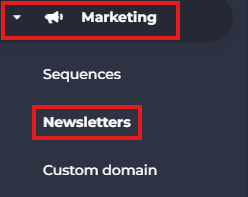
- From the side menu, navigate to Marketing.
- Select Newsletters.
- Click Create.
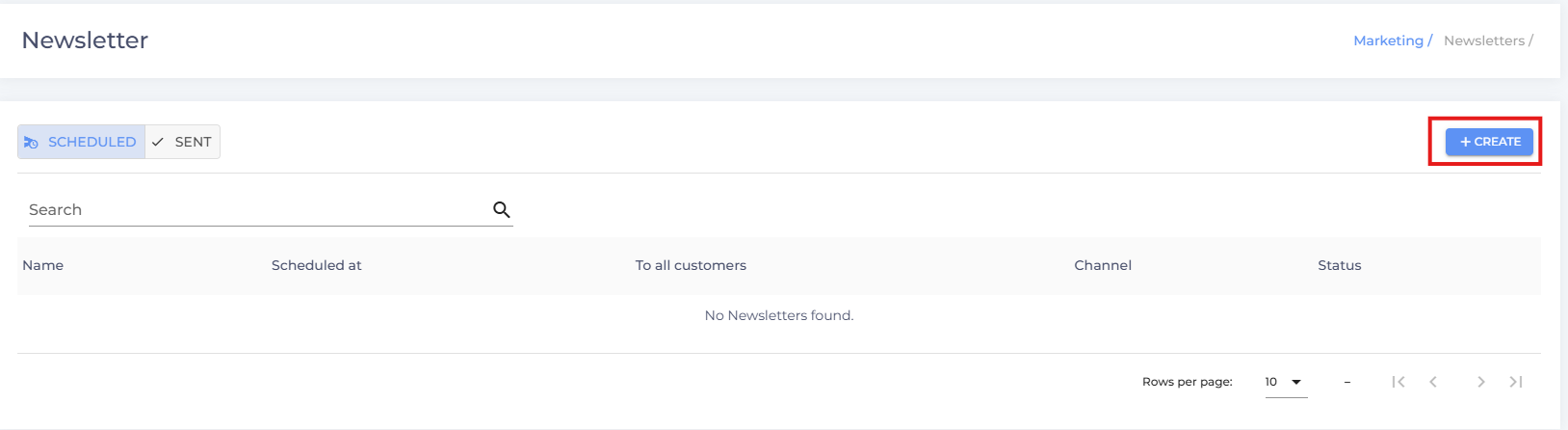
- Enter a Newsletter Name.
Choose when you want to send the newsletter:
- Send Instantly – Sends the newsletter immediately after it is published.
- Send on a Future Date – Schedule the newsletter to be sent on a specific date and time.
Select your recipients. You can choose from the following options:
- All Customers – Sends the newsletter to every customer in your database.
- Specific Customers – Select individual customers to receive the newsletter.
- Customers Using Filters – Target customers based on Status and Tags.
- Customers Using Segments – Send the newsletter to a previously created customer segment.
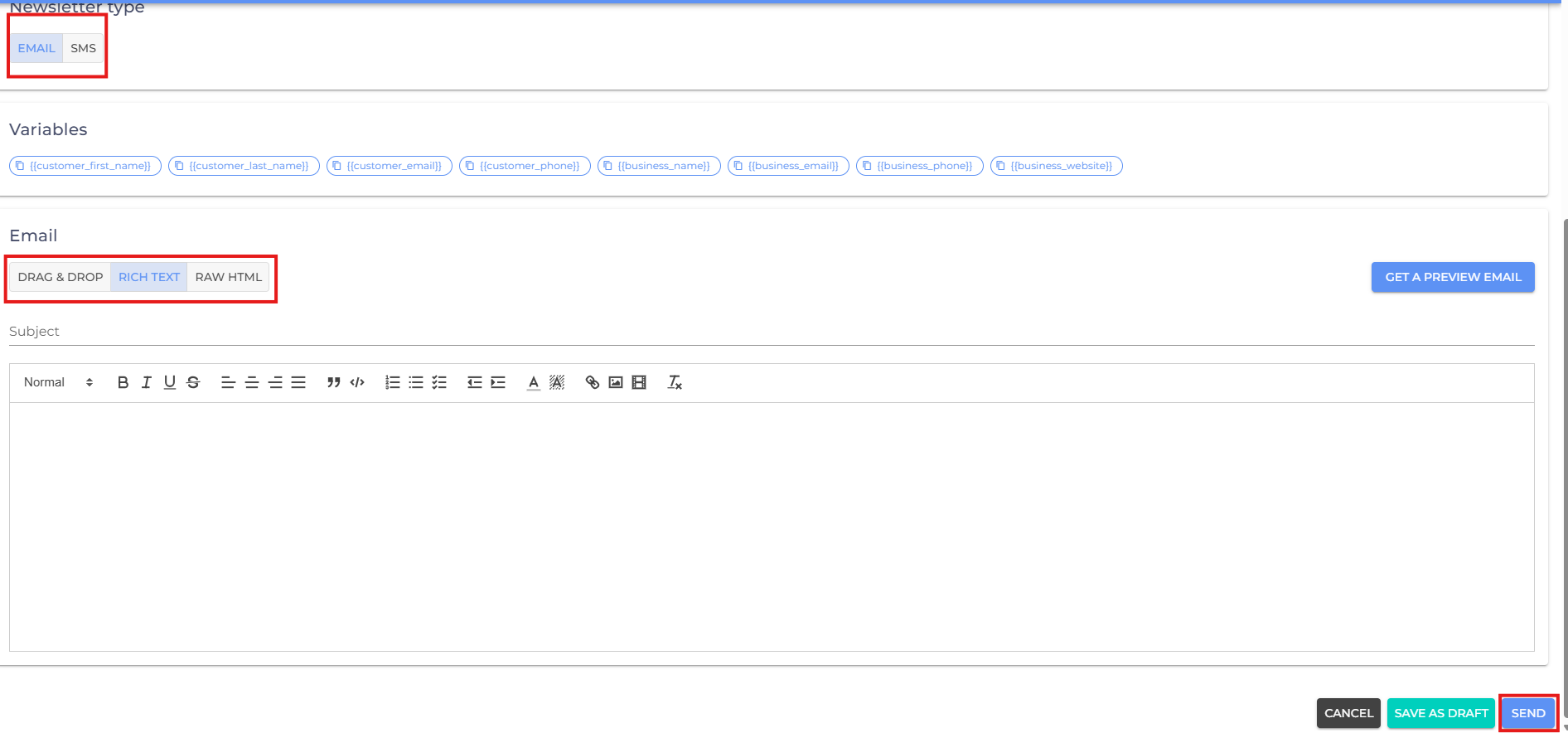
Select the Newsletter Type:
- Email – Send the newsletter via email.
- SMS – Send the newsletter as a text message.
If you select Email, choose one of the available email editors:
- Drag-and-Drop – Design your email using a visual editor by adding and arranging content blocks such as images, buttons, and text.
- Rich Text – Create your email using a rich text editor with formatting options such as headings, bold, italics, lists, links, and images.
- Raw HTML – Create or paste your own HTML code for complete control over the email's layout and design.
- Review your newsletter and click Send.
- If you are facing any difficulties, get in touch with us via help.studiogrowth.com and we'll help you to get up and running in no time.