
Create a Room
Rooms help you manage the availability of your appointment and class spaces. By assigning services to a room, StudioGrowth can prevent scheduling conflicts by ensuring the same room isn't booked for multiple sessions at the same time.
Assign a Service to a Room
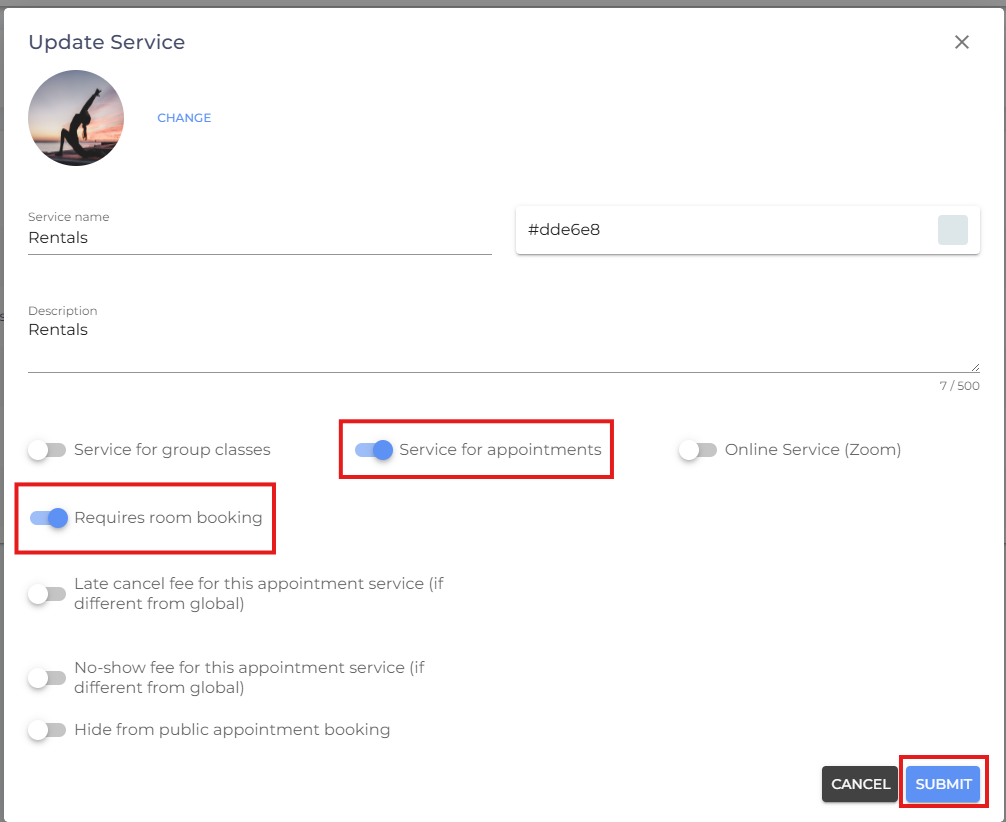
Before you can assign a service to a room, the service must be configured to require room booking.
- Navigate to Business Setup from side menu.
- Select Services.

- Create a new service or edit an existing one.

- Enable Service for Appointments.
- Enable Requires Room Booking.
- Click Submit.
Create a Room
- From the side menu, navigate to Business Setup.
- Select Rooms.

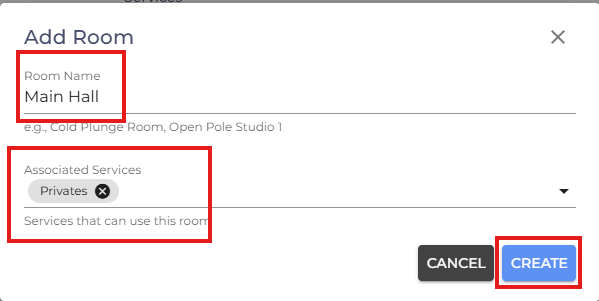
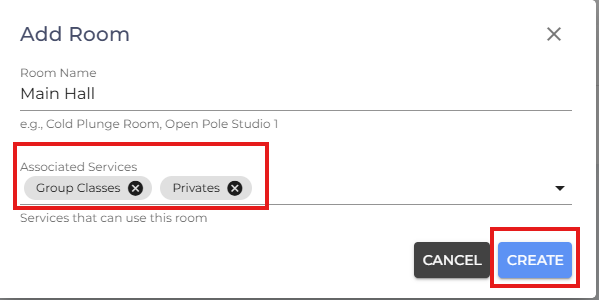
- Click Add Room.

- Enter a Room Name.
- Select the Service(s) that can be booked in this room.
- Click Create.
Use Rooms to Prevent Scheduling Conflicts
Rooms can be used to prevent appointment bookings from overlapping with group classes that take place in the same room.
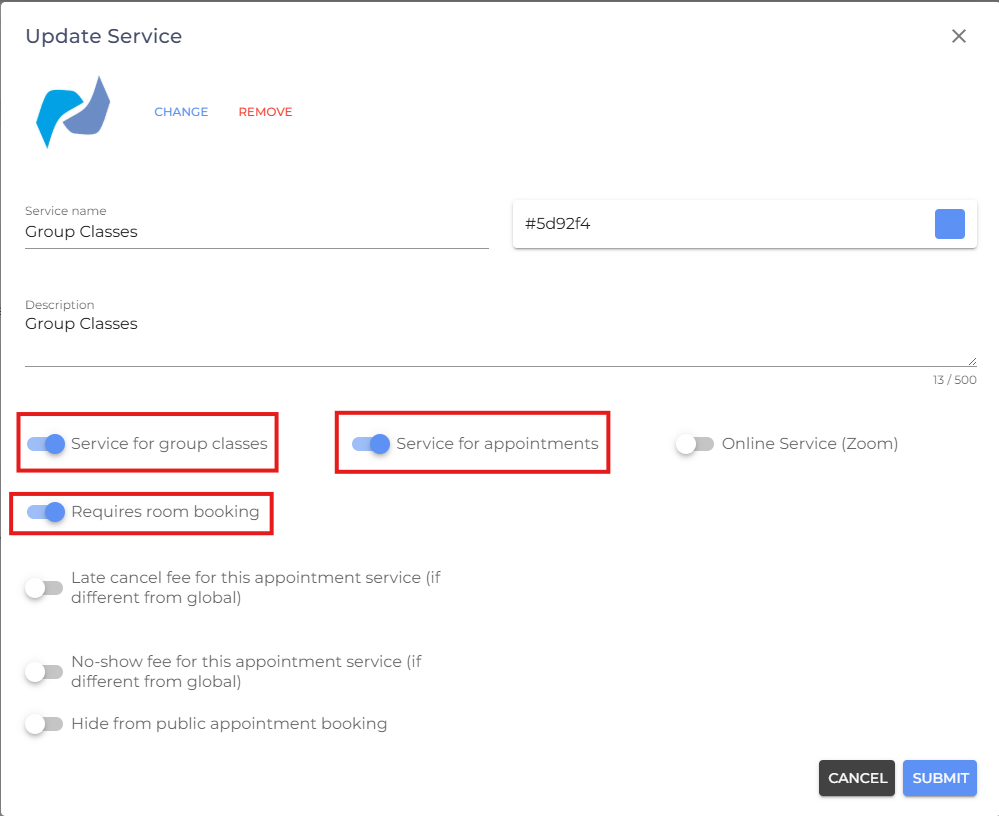
- Create or edit a service.
- Enable both Service for Group Classes and Service for Appointments.
- Enable Requires Room Booking.
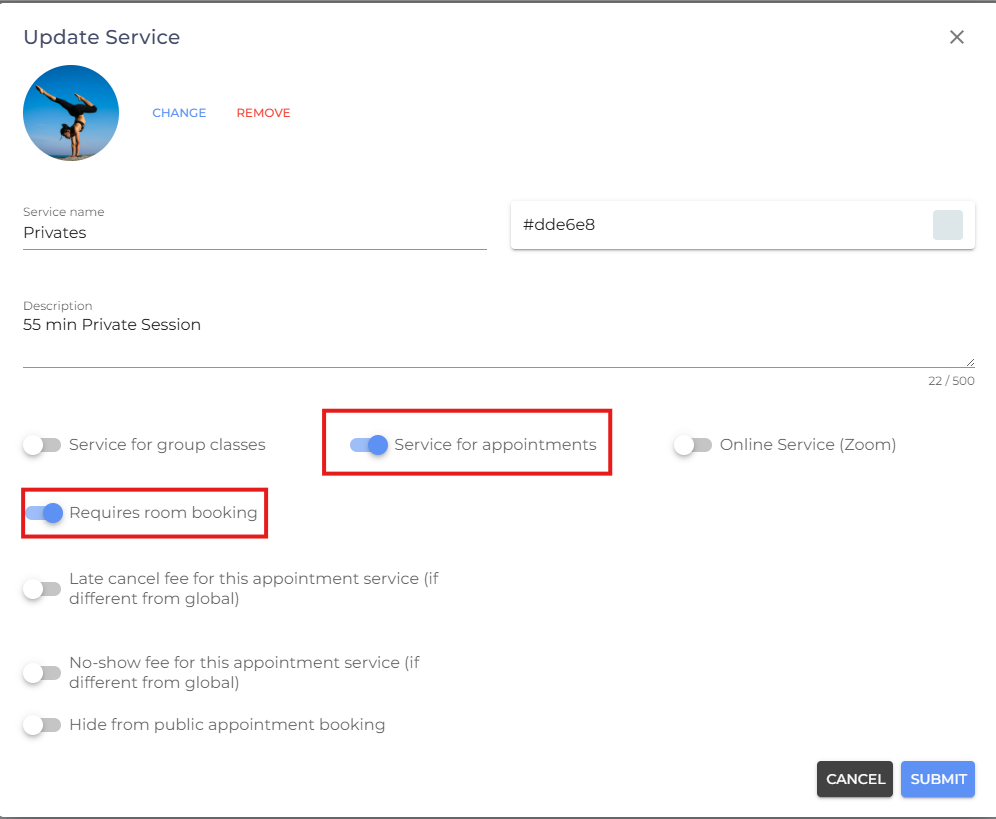
- Create a second service and enable Service for Appointments and Requires room booking.
- Assign both the service to the same room.
- Click Create.
Related Article: Once you've configured the service and room, you'll need to create a class and assign the room. See Create a Class for step-by-step instructions.
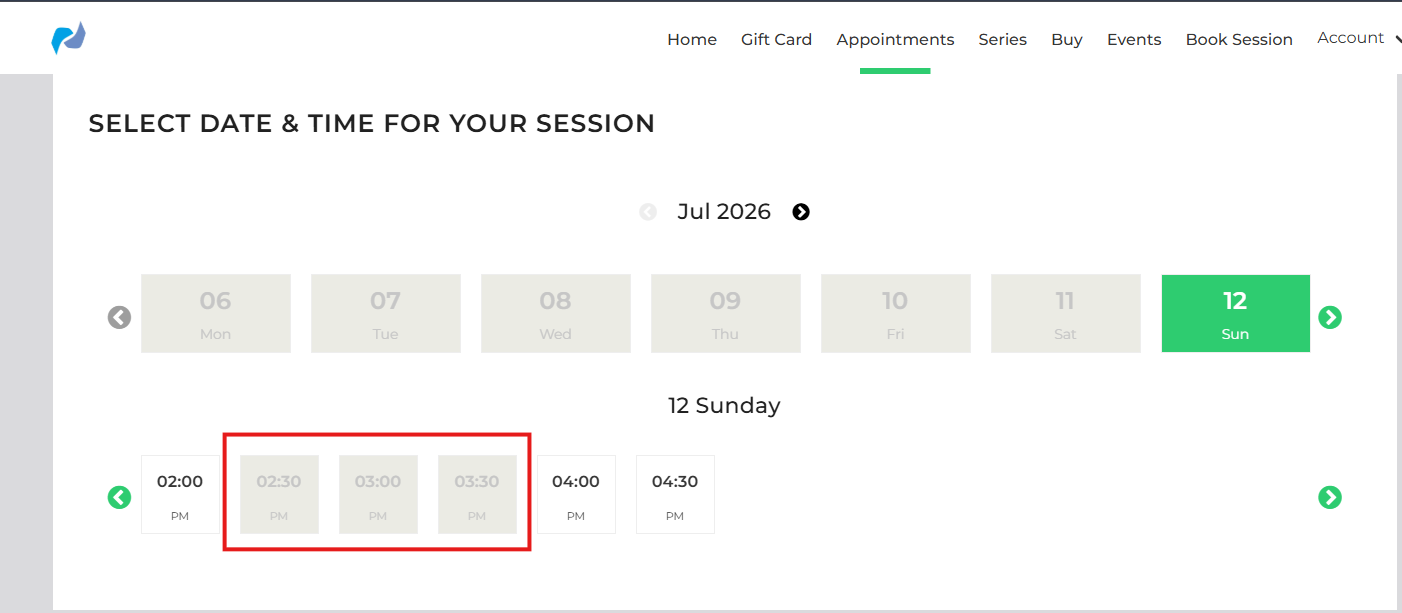
Result: Once the room has been assigned to the group class, customers will not be able to book appointments in that room during the scheduled class time. This prevents double bookings and ensures the room is only occupied by one session at a time.
- If you are facing any difficulties, get in touch with us via help.studiogrowth.com and we'll help you to get up and running in no time.