
Configure Advanced Settings for a Membership
Access Advanced Settings
- From the side menu, navigate to Passes.
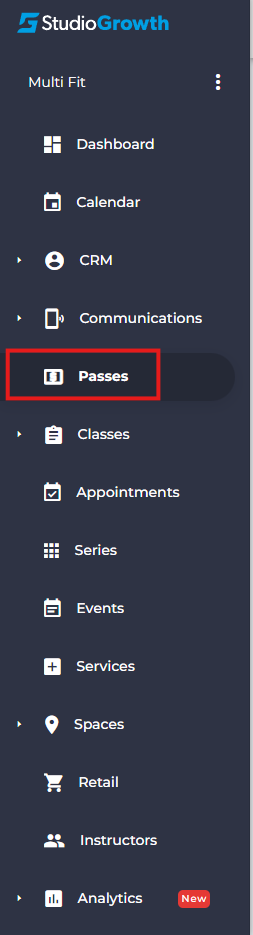
- Click Add New Pass.

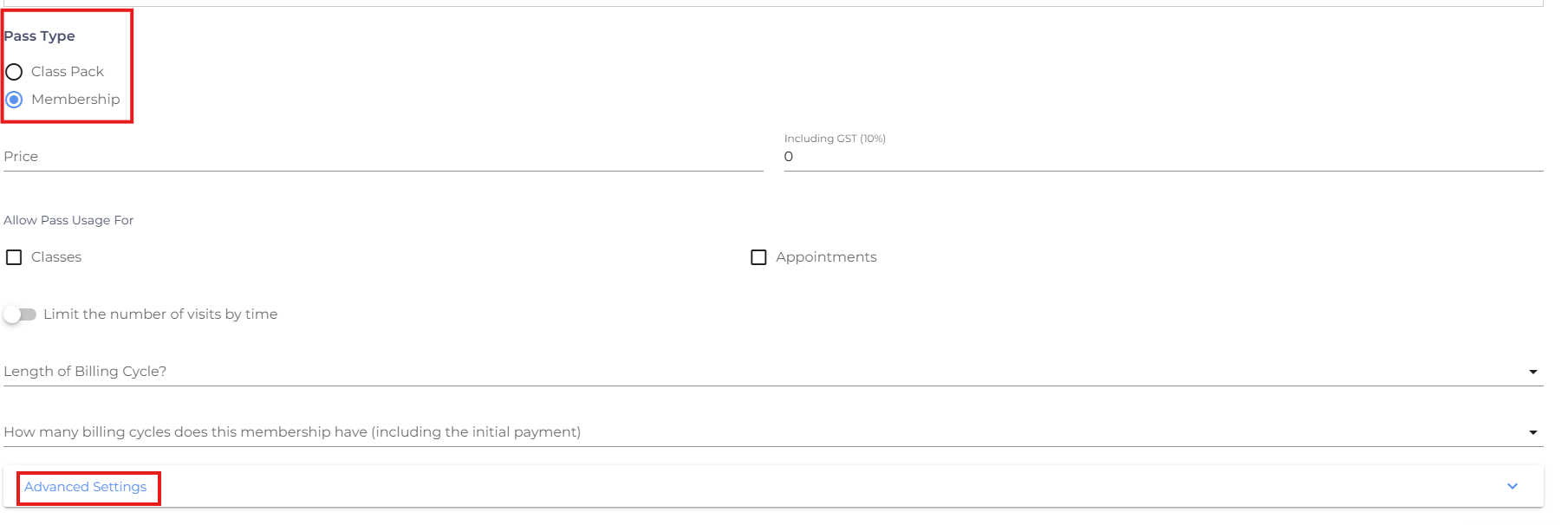
- Complete the required membership details.
- Select Pass Type as Membership.
- Click Advanced Settings to configure additional membership options.
Advanced Settings Options
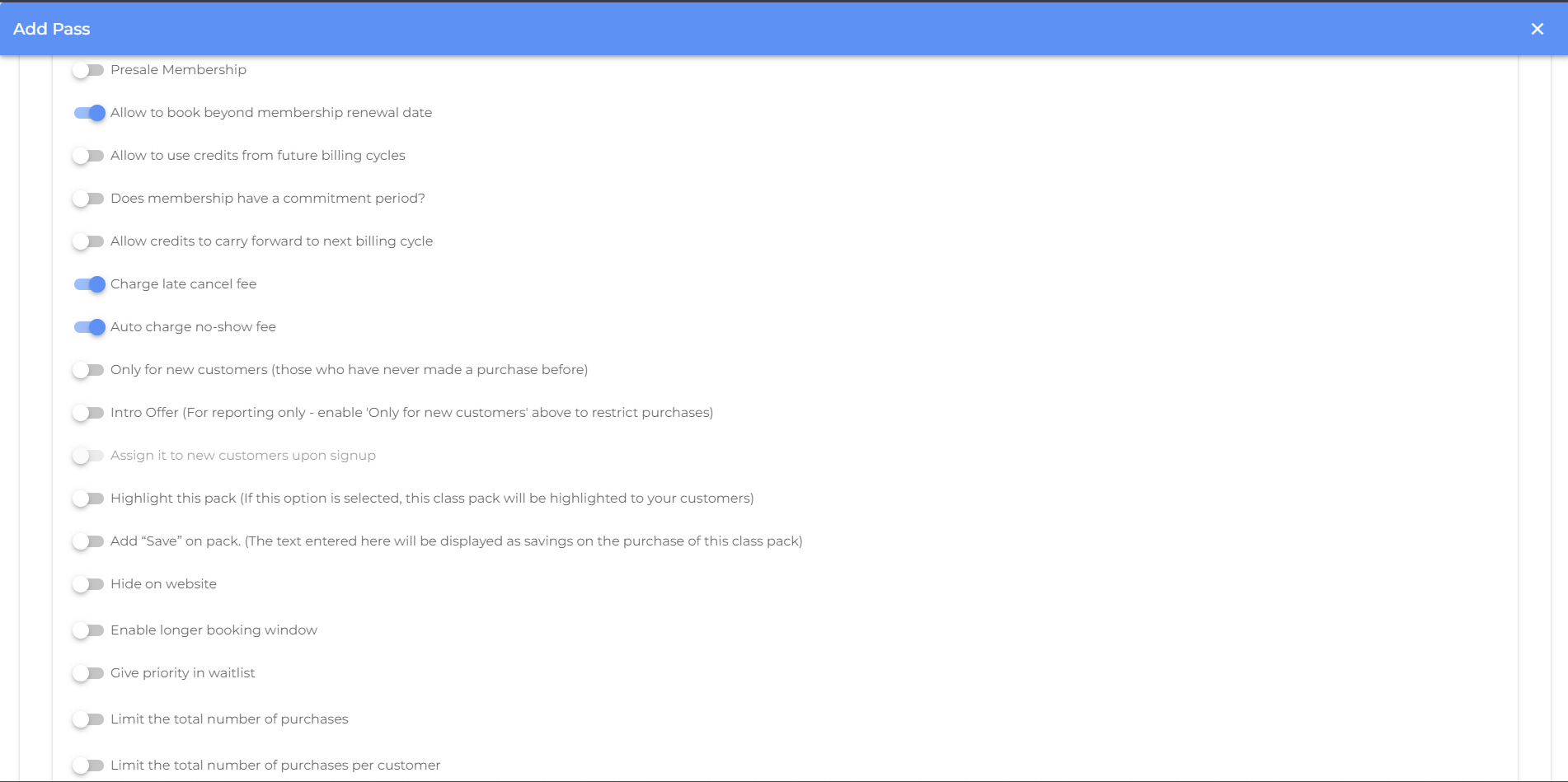
Advanced Settings Options
Presale Membership
Allow customers to purchase the membership before it becomes active. The membership will activate according to its configured start date.
Allow to Book Beyond Membership Renewal Date
Allow customers to book classes beyond their current membership renewal date, provided future credits are available or the membership is expected to renew.
Allow to Use Credits from Future Billing Cycles
Allow customers to use credits from upcoming billing cycles before those cycles begin.
Does Membership Have a Commitment Period?
Require customers to keep the membership active for a minimum number of billing cycles before they can cancel it.
Allow Credits to Carry Forward to Next Billing Cycle
Carry over any unused membership credits to the next billing cycle instead of expiring them at the end of the current cycle.
Charge Late Cancel Fee
Automatically charge the configured late cancellation fee when a customer cancels after the allowed cancellation period.
Auto Charge No-Show Fee
Automatically charge the configured no-show fee when a customer fails to attend a booked class.
Only for New Customers
Restrict the membership so that it can only be purchased by customers who have never completed a purchase.
Intro Offer
Mark the membership as an introductory offer for reporting purposes. To restrict the membership to new customers, you must also enable Only for New Customers.
Assign It to New Customers Upon Signup
Automatically assign this membership to newly created customer accounts.
Highlight This Pack
Highlight the membership on your booking website to make it more visible to customers.
Add "Save" on Pack
Display a custom savings message on the membership, such as "Save 20%" or "Best Value", to highlight promotional savings.
Hide on Website
Hide the membership from your online booking website while keeping it available for staff to sell through the Point of Sale (POS).
Enable Longer Booking Window
Allow customers with this membership to book classes further in advance than the standard booking window.
Give Priority in Waitlist
Give customers with this membership higher priority when a place becomes available from the waitlist.
Limit the Total Number of Purchases
Set the maximum number of times this membership can be purchased across all customers.
Limit the Total Number of Purchases per Customer
Restrict how many times an individual customer can purchase this membership.
Note: After configuring the required advanced settings, click Continue to complete the remaining membership configuration.
- If you are facing any difficulties, get in touch with us via help.studiogrowth.com and we'll help you to get up and running in no time.