
Troubleshooting Class Booking Issues
If a customer is unable to book a class, there are several settings you can check to identify and resolve the issue. This article covers some of the most common causes of class booking problems.
Verify the Customer Has an Eligible Pass
If a customer cannot book a class, first check whether the class is assigned to a pass that the customer owns.
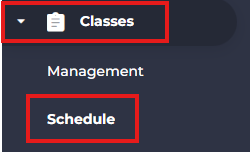
- Go to Classes.
- Click Schedule.
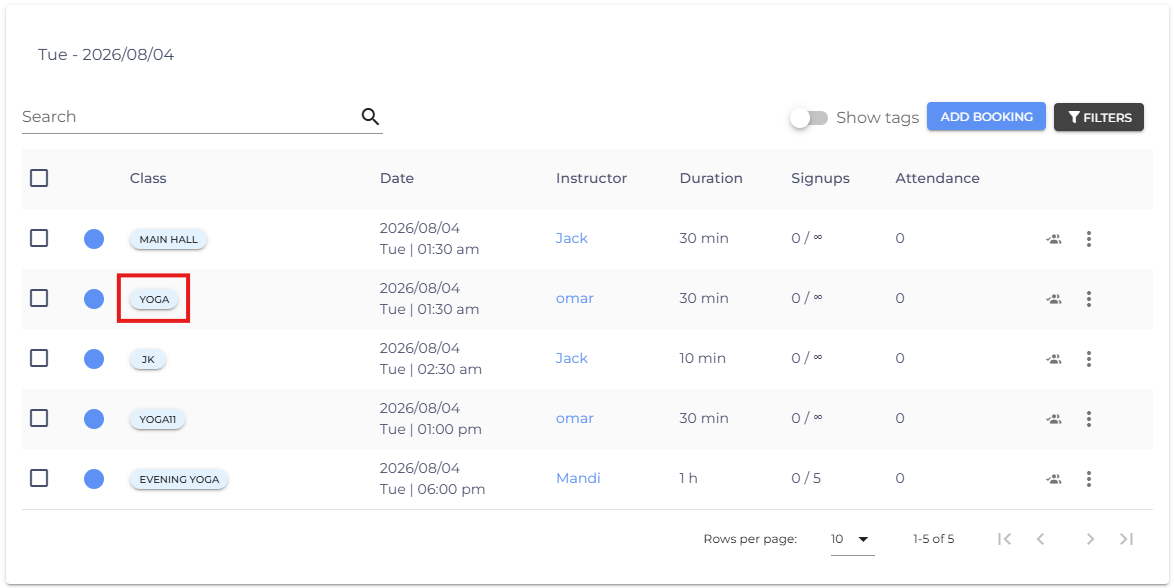
- Click on the class for which you want to see the assigned passes.
- Verify which passes are assigned to the class.
- Confirm that the customer has one of the assigned passes.
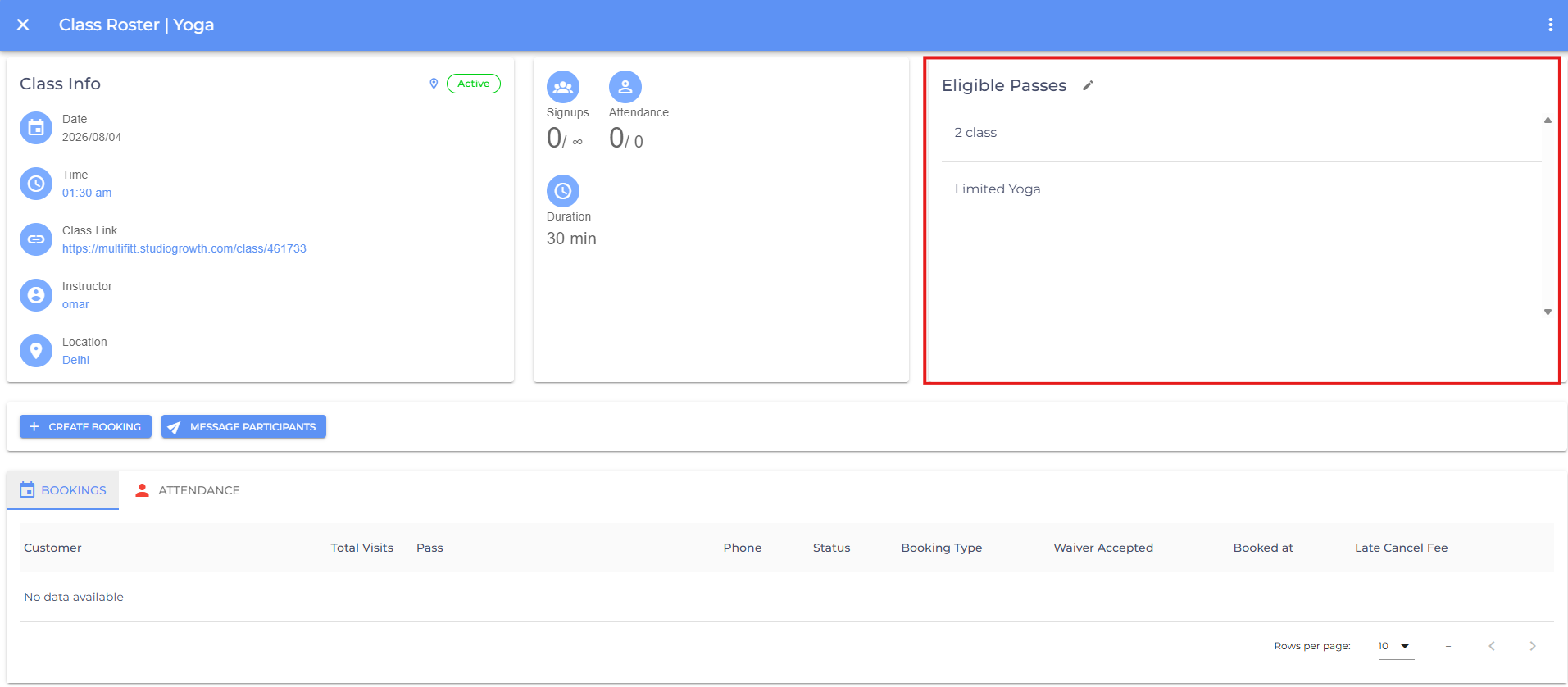
Note: If the customer does not have one of the assigned passes, they will not be able to book the class
Check the Customer's Available Credits
If the customer has the correct pass but still cannot book the class, verify that they have enough credits remaining.
- Go to CRM > Customers.
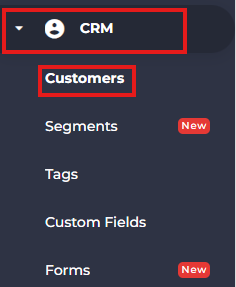
- Select the customer.

- Open the Passes tab.
- Select the customer's class pack.
- Check the remaining credits.
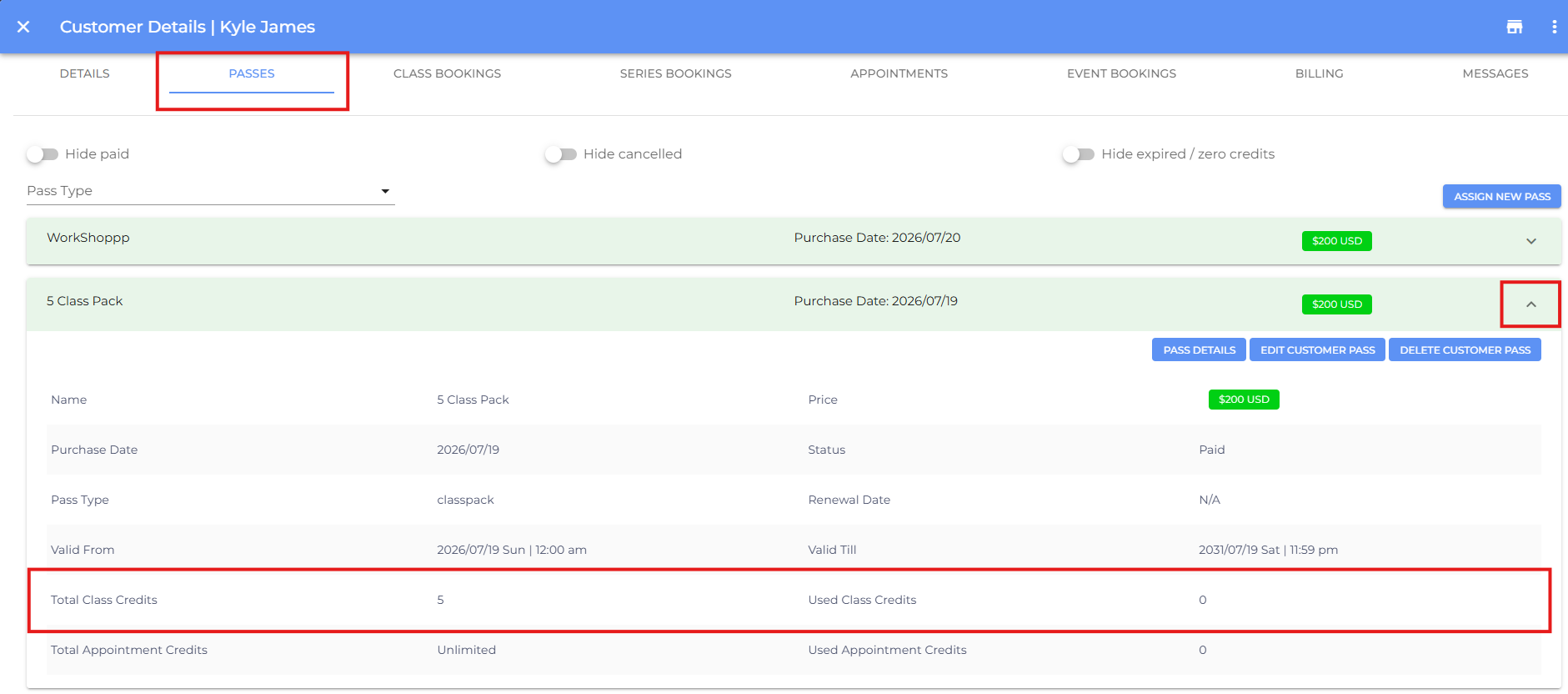
Note: Customers must have sufficient credits available to book a class.
Update the Class Pack Validity Period
If a customer needs to book a class outside the validity period of their class pack, you can update the class pack's start or end date.
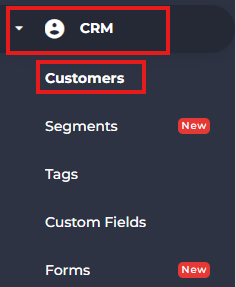
- Go to CRM > Customers.
-
Select the customer.

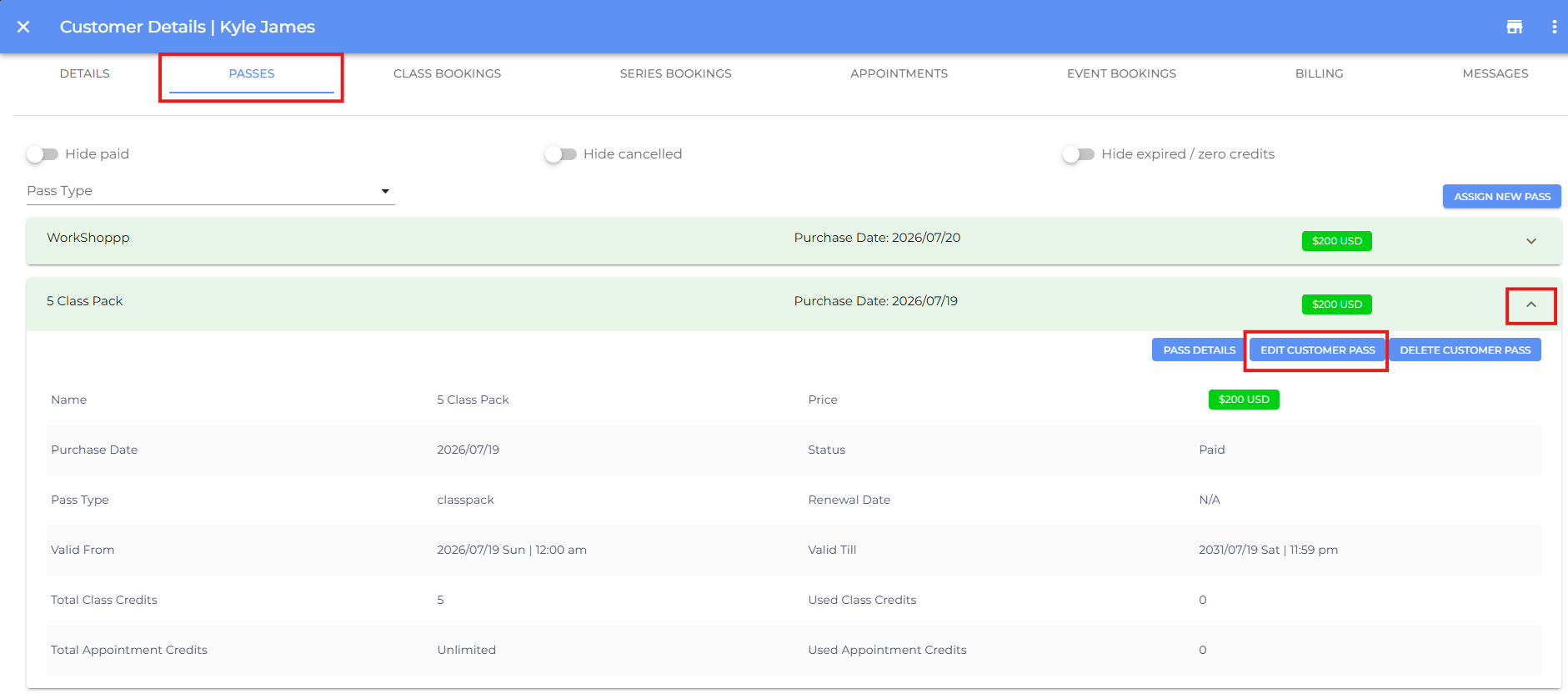
- Open the Passes tab.
- Select the customer's Class Pack.
- Click Edit Customer Pass.
-
Update the Start Date or End Date as required.
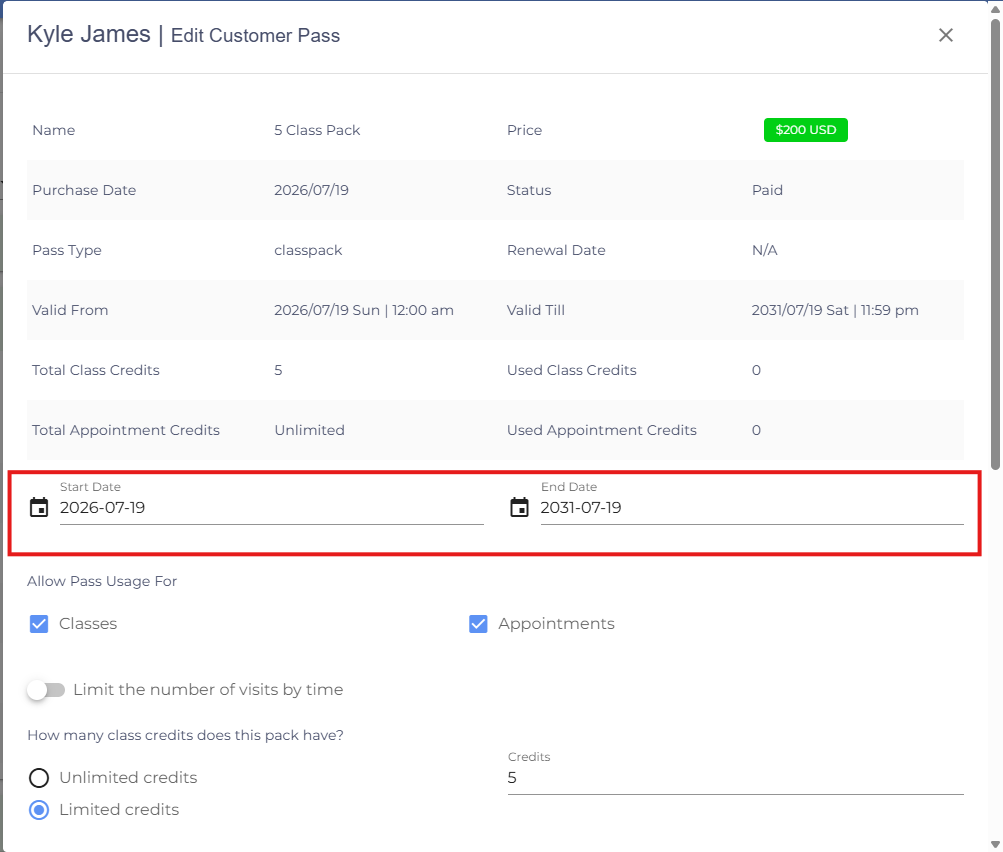
- Scroll down and click Update.
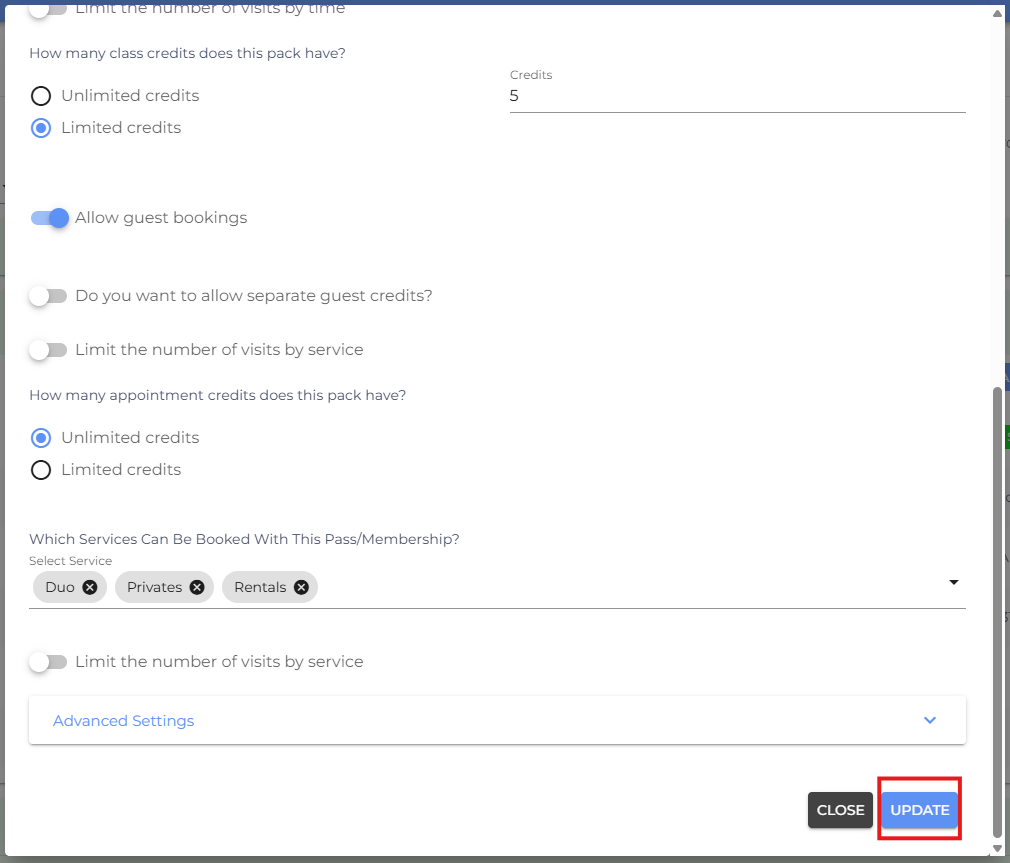
Note: You can only edit the validity period of Class Packs. The start and end dates of Memberships cannot be modified.
- If you are facing any difficulties, get in touch with us via help.studiogrowth.com and we'll help you to get up and running in no time.