
Integration with Wellhub
Wellhub (formerly Gympass) lets its members book your classes from the Wellhub app. Once you connect, your upcoming classes appear on Wellhub, members' bookings land on your roster, and their check-ins come back to StudioGrowth. You set it up yourself with a one-time connection code.
If you don't see Wellhub on your Integrations page, it isn't included in your plan.
Before you start
- Make sure every class you want on Wellhub has a location. Each location is its own Wellhub gym, and a class with no location can't reach one. See Enabling and setting up Locations.
- Have your Wellhub partner account ready, so you can add StudioGrowth as your integrated system there.
Connect your studio
- From the side menu, go to Settings > Integrations.
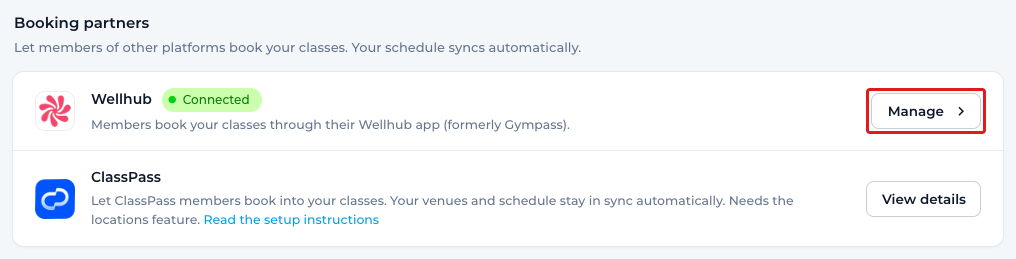
- Under Booking partners, click Manage next to Wellhub.
- Click Generate code. If your studio has more than one location, each location has its own Generate code button. Generate a code for each location you want on Wellhub.
- Click Copy to copy the code.
- In Wellhub, add StudioGrowth as your integrated system and paste the code.
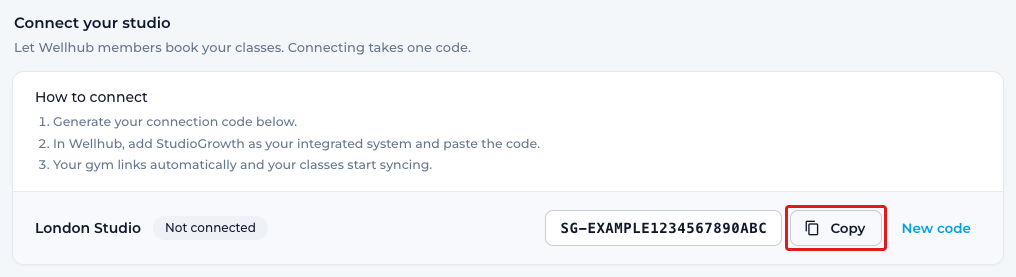
That's all you need to do. When Wellhub confirms the code, the location links to its Wellhub gym on its own. The page then shows Connected at the top, and the location's gym number appears next to its name.
Each code works once. If you lose a code or want a fresh one before you use it, click New code. The old code then stops working.
Choose your Wellhub products
Wellhub prices in-person and online classes separately, so each connected location has two products to choose from.
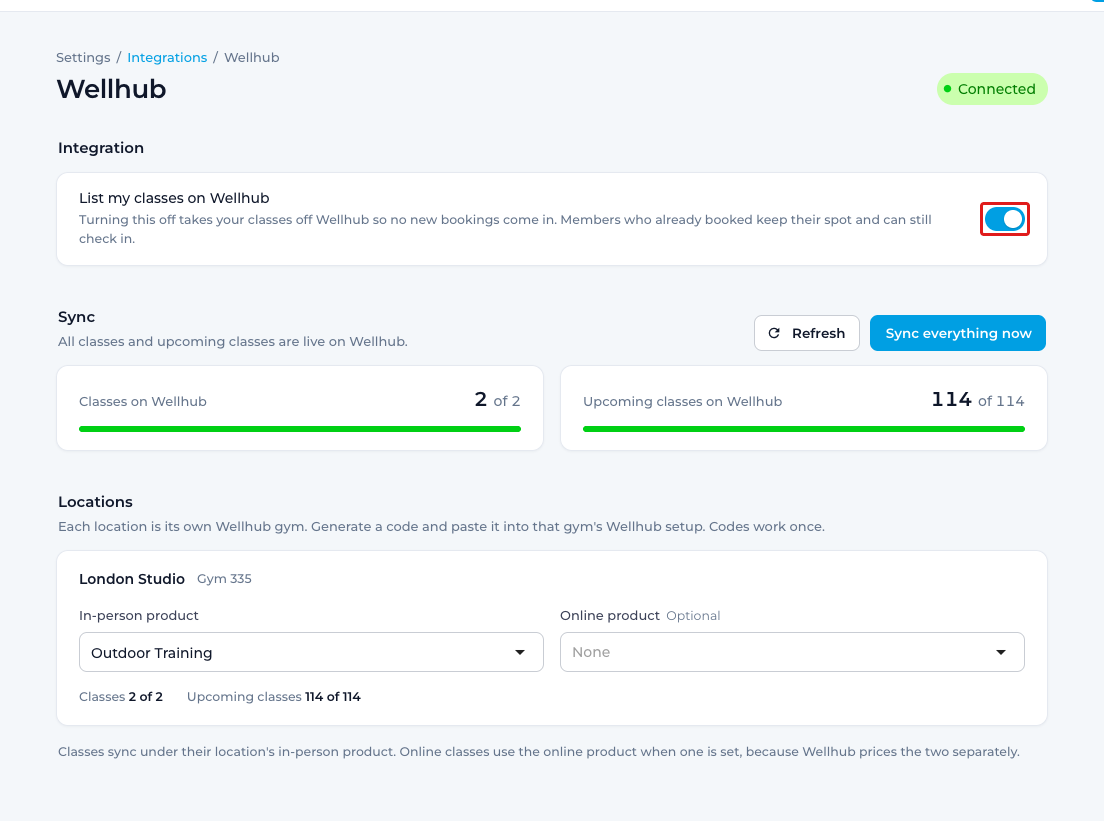
In-person product – Every class at the location is listed on Wellhub under this product. You need to choose one. Until you do, none of the location's classes reach Wellhub.
Online product – Optional. Online classes use this product when it's set. If you leave it at None, online classes use the in-person product.
Each list only shows the location's products of that kind. Choose your products, then save the change in the bar at the bottom of the page. If you see "This gym has no products on Wellhub", contact Wellhub to add them, then reopen the page.
Turn listing on or off
List my classes on Wellhub is on once you connect. Turn it off to take all your classes off Wellhub so no new bookings come in. Members who already booked keep their spot and can still check in. Turn it back on and your classes are listed again.
Check the sync
Your classes sync on their own. Wellhub is updated when you add, change or cancel a class, and every time someone books or cancels, so Wellhub always has your current spots. The Sync section shows how much is live:
- Classes on Wellhub – your class templates that are listed.
- Upcoming classes on Wellhub – the scheduled classes members can book. Only upcoming classes are listed, never past ones.
The line under Sync tells you what's going on. For example, it names a location that has no product yet, or counts classes that have no location. Click Refresh to update the numbers. If something still hasn't synced, click Sync everything now.
Keep a class off Wellhub
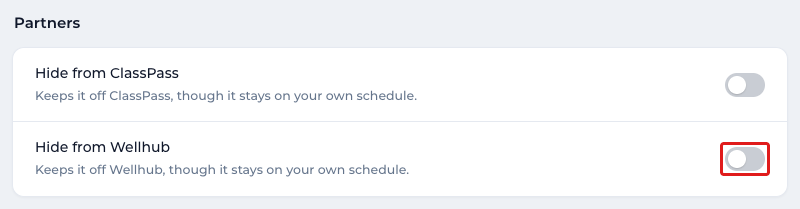
Say you run a members-only workshop that should stay on your own schedule. Use Hide from Wellhub to keep it off Wellhub.
- Open the class form. You'll find the setting when you add a class template, and when you edit a single class on your schedule.
- In the Partners section, turn on Hide from Wellhub.
- Save the class.
If you hide a class that's already on Wellhub, it comes off. You can't hide a class template that still has Wellhub bookings. Cancel those bookings first.
What happens when a Wellhub member books
The booking appears on your class roster like any other, with a Wellhub label next to the member's name. If the member is new to your studio, StudioGrowth adds them as a customer. If you already have a customer with the same email address, the booking goes on that customer and their details stay as they are.
Wellhub customers get the tag "wellhub user", and their profile shows Wellhub member. Wellhub bookings don't use a pass or credits, and StudioGrowth doesn't send its own booking confirmation or cancellation emails for them.
Why a booking is declined
Wellhub bookings follow the same rules as your own. StudioGrowth declines a booking, and Wellhub tells the member why, when:
- the class is full or isn't taking bookings. Wellhub members don't join a waitlist.
- the member already has a spot in that class.
- the class has been canceled or archived.
- the booking is outside your booking window, for example after your booking deadline.
- the class is limited to customers with a tag the member doesn't have.
Your booking deadline and cancellation deadline come from your Reserve & Cancel Policy. If those settings let customers book or cancel after a class starts, Wellhub members can't: for them, both close when the class starts.
Cancellations and late cancellations
When a member cancels in Wellhub, their booking is canceled on your roster and the spot opens up again, on Wellhub too. It's marked as a late cancellation when Wellhub reports it as late, or when it comes after your cancellation deadline.
You can also cancel a Wellhub booking from your roster. The spot is freed on Wellhub as well.
StudioGrowth doesn't charge Wellhub members late cancellation or no-show fees. The roster doesn't offer those charges for Wellhub bookings.
Check-in
Wellhub members check in through Wellhub. Wellhub's check-in window opens 30 minutes before the class starts and closes 30 minutes after. StudioGrowth confirms each check-in with Wellhub as it happens, and the Wellhub label on your roster turns green once it's confirmed. Hover over the label to see where the member stands:
- Checked in – Wellhub confirmed the check-in.
- Not checked in yet – the member is booked but hasn't checked in.
- No check-in, Expired, Cancelled or Check-in failed – Wellhub didn't confirm the check-in.
A member who books but never checks in is simply a no-show. Nothing else happens to the booking.
How Wellhub pays you
Wellhub pays your studio for each check-in it confirms. A booking on its own doesn't count, and neither does a no-show.
Note: Marking a Wellhub member present on your roster doesn't check them in on Wellhub. The member has to check in through Wellhub for the visit to count.
Running ClassPass too? See Integration with ClassPass.
If you have any questions, reach out to us at team@studiogrowth.com and we'll get you up and running in no time.