
Accept a Waiver from the Admin Portal
When a walk-in customer creates a new account, they may need to accept a waiver before attending a class, appointment, series, or event. Admins can open the waiver directly from the admin portal and have the customer accept it at the front desk.
Instead of sending the waiver by email and waiting for the customer to open it, the admin can open the waiver on the spot and let the customer accept it immediately.
- Go to CRM.
- Click Customers.

-
Select the customer who has just created their account.

-
Click the three dots (⋮) in the top-right corner.

'
- Select the appropriate option:
- Send / open class waiver
- Send / open appointment waiver
- Send / open series waiver
- Send / open event waiver

-
Choose Open to display the waiver directly to the customer.
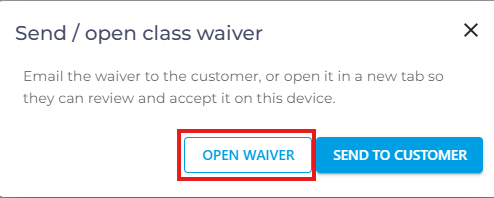
- Have the customer review the waiver and click Accept Waiver.

When to use this:
This is useful for walk-in customers who are creating a new account at the front desk and need to accept a waiver before attending a class, appointment, series, or event. The admin can open the waiver immediately on the screen and have the customer accept it without sending an email.