
Processing Fees
StudioGrowth allows studios to charge a processing fee on card payments. Contact the StudioGrowth team to enable the Processing Fee feature for your account before following the steps below.
Configure Processing Fees
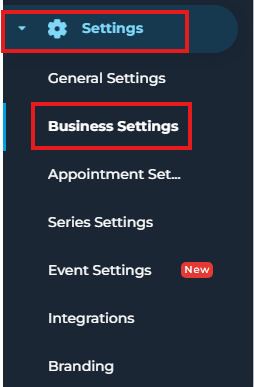
- Go to Settings.
- Click Business Settings.
- Scroll down to Processing Fee
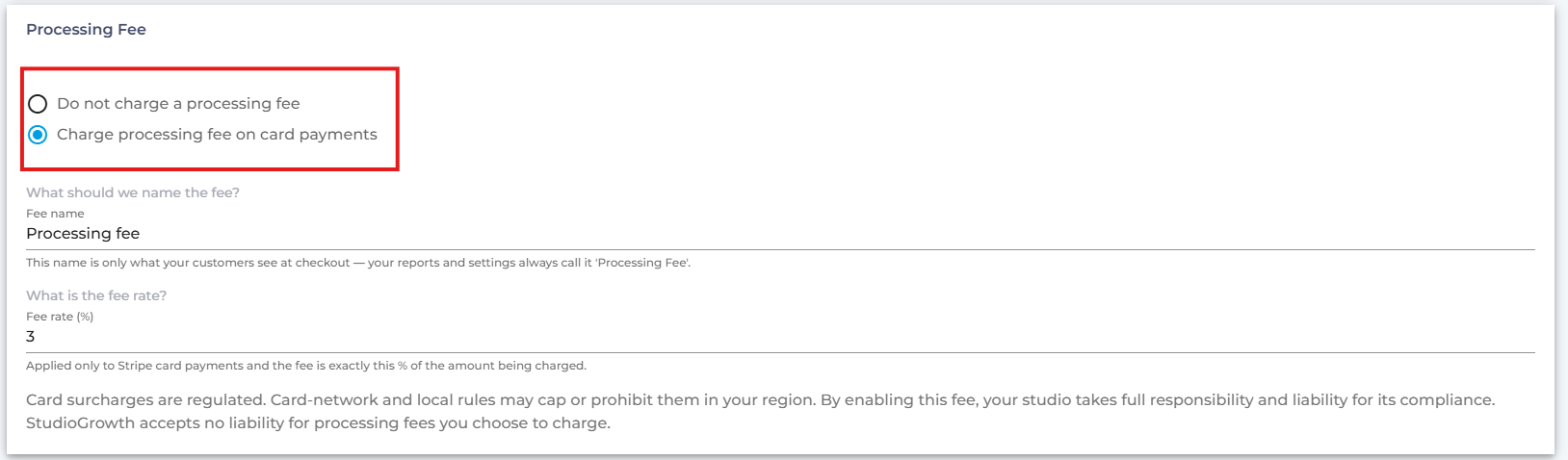
Select one of the following options:
- Do not charge a processing fee – No processing fee will be charged on card payments.
- Charge processing fee on card payments – Adds a processing fee to eligible card payments.
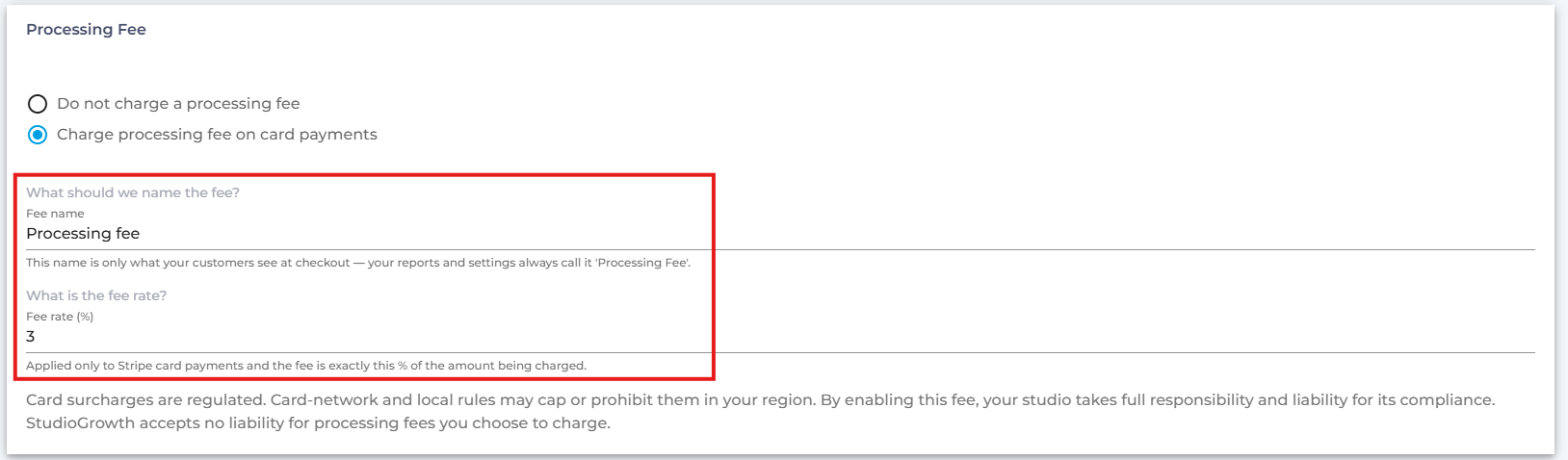
If you choose Charge processing fee on card payments, configure the following:
- Fee Name – Enter the name that customers will see at checkout.
- Fee Rate (%) – Enter the percentage to charge. This applies only to Stripe card payments and is calculated as a percentage of the amount being charged.
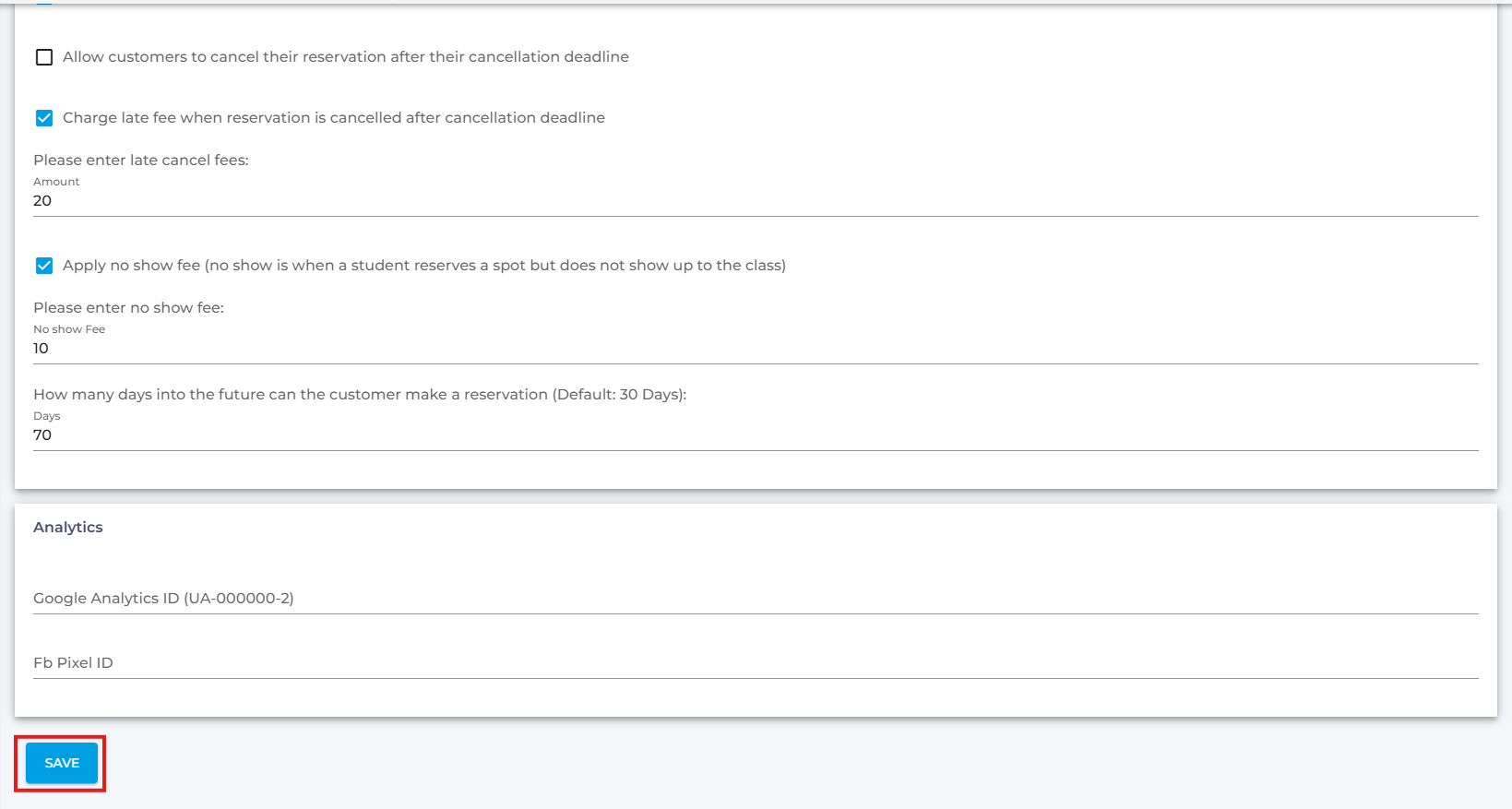
- Scroll down and click Save.
Note-Card surcharges are subject to card-network and local regulations, which may limit or prohibit them in certain regions. By enabling this feature, the studio is responsible for ensuring compliance with applicable requirements. StudioGrowth does not accept liability for processing fees configured by the studio.