
Configure Waitlist Settings
StudioGrowth allows you to choose how customers are notified and booked when a spot becomes available for a class.
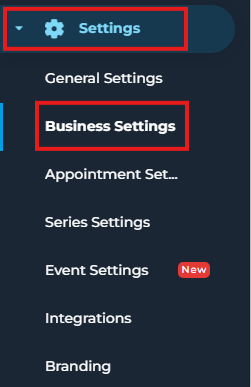
- Go to Settings.
- Click Business Settings.
- Scroll down to Reserve and Cancel Policy.
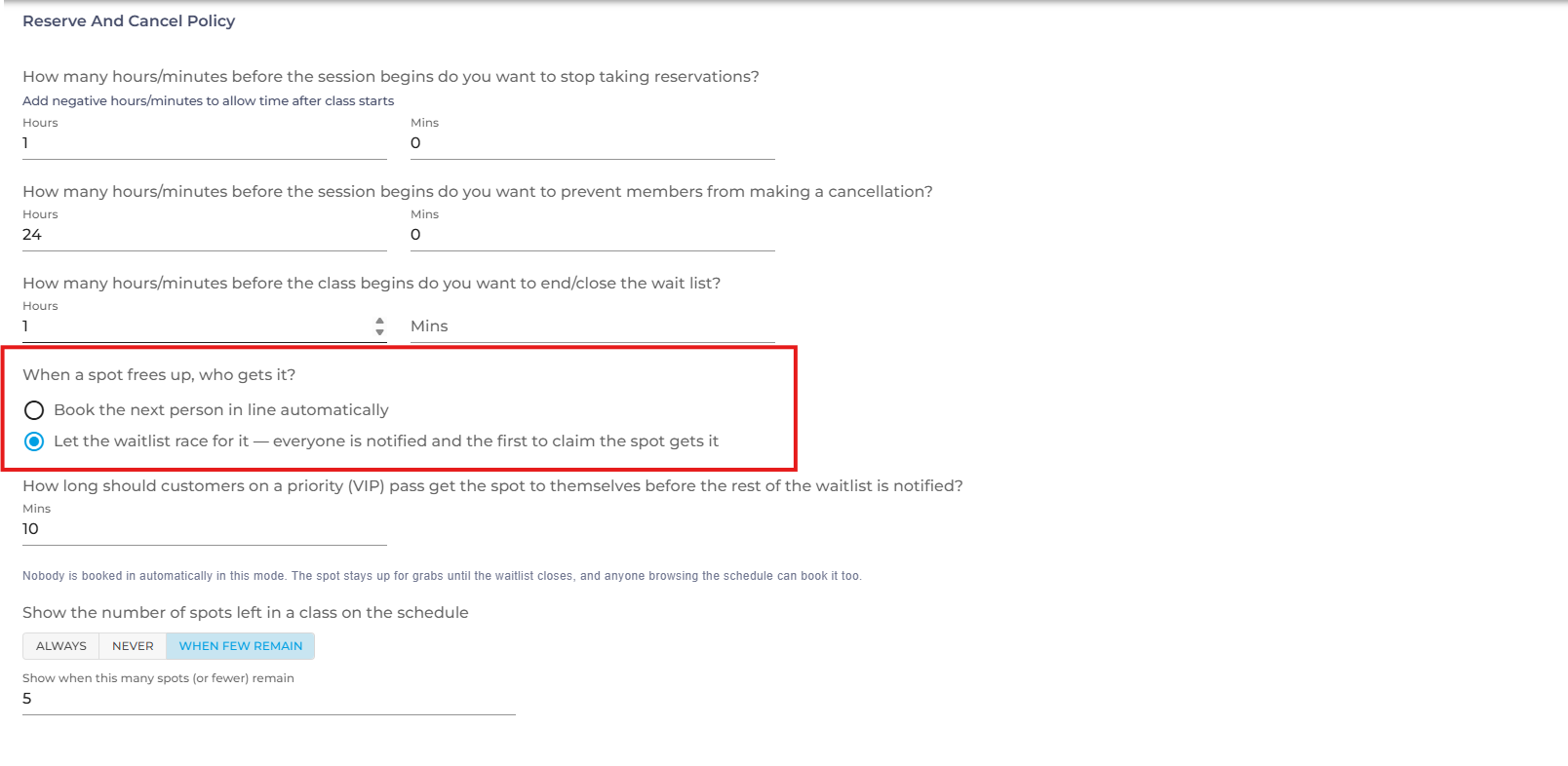
- Under the waitlist settings, select one of the following options:
Book the next person in line automatically – When a spot becomes available, the next customer on the waitlist is automatically booked into the class.
Let the waitlist race for it – Everyone on the waitlist is notified when a spot becomes available. The first person to claim the spot gets booked.
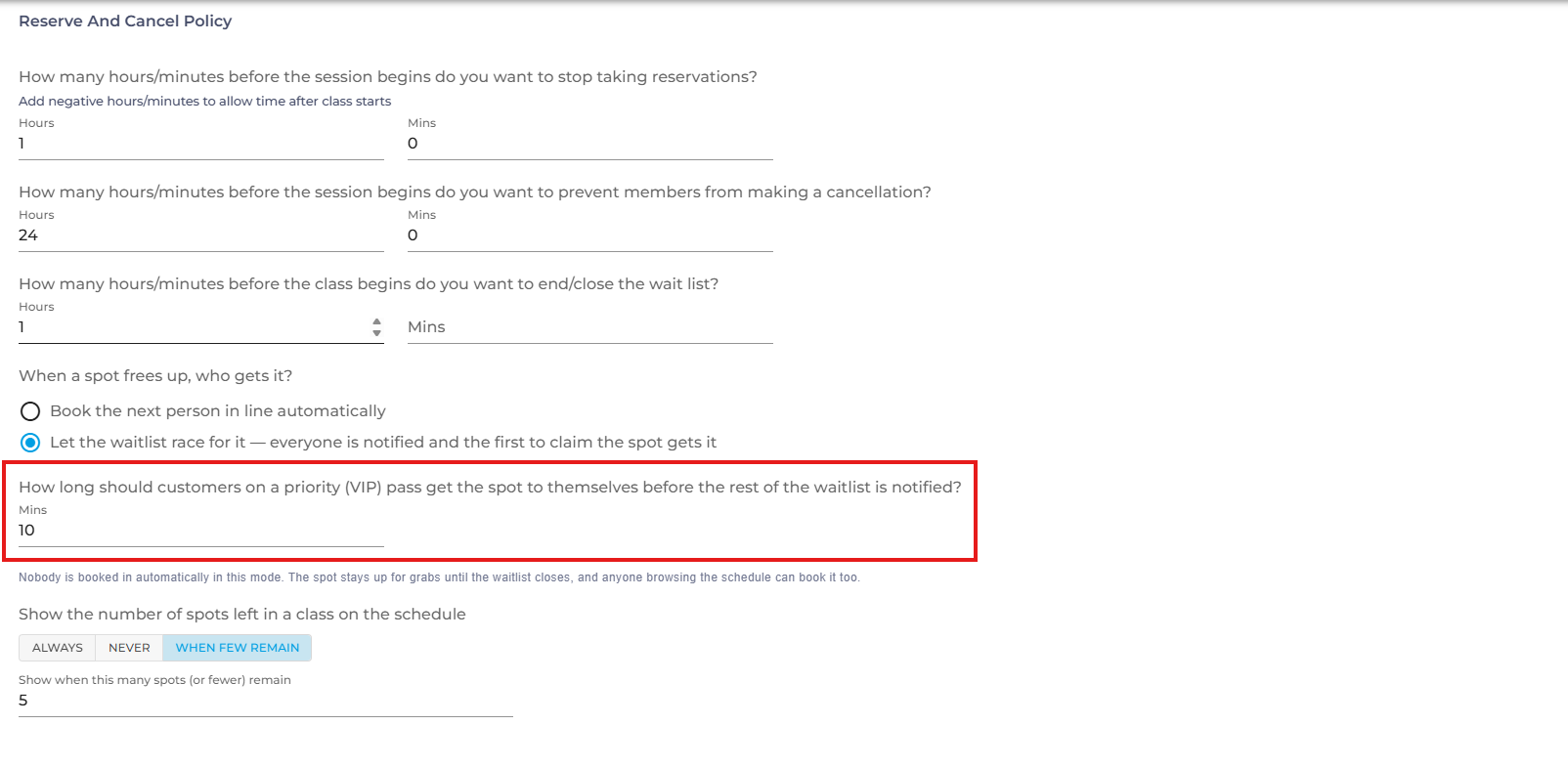
- If you select Let the waitlist race for it, set How long should customers on a priority (VIP) pass get the spot to themselves before the rest of the waitlist is notified? This determines how long customers with a priority (VIP) pass have to claim the available spot before the rest of the waitlist is notified.
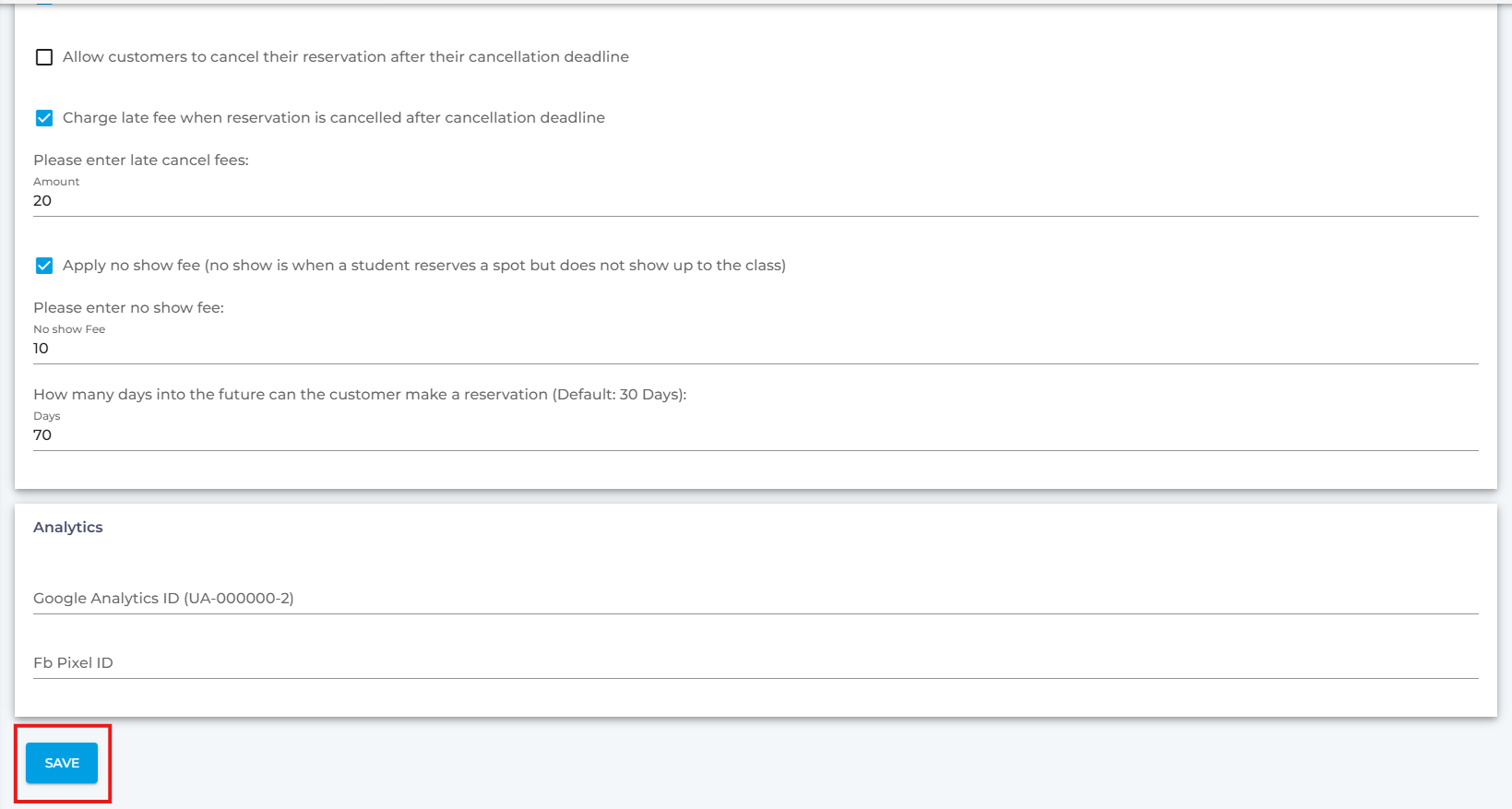
- Scroll down and click Save.
Note-With Let the waitlist race for it, nobody is booked automatically. The spot stays available until the waitlist closes, and anyone browsing the schedule can also book the spot.