
Assigning Classes to Customers
The way you assign classes to your customers depends on the role you play in the studio.
As an Admin:
Click 'Classes' in the side menu and access the 'Schedule' tab.
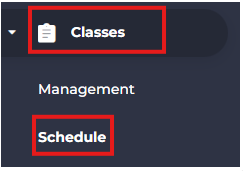
From here, there are 2 ways in which you can assign classes:
-Using the 'Add Booking' button:
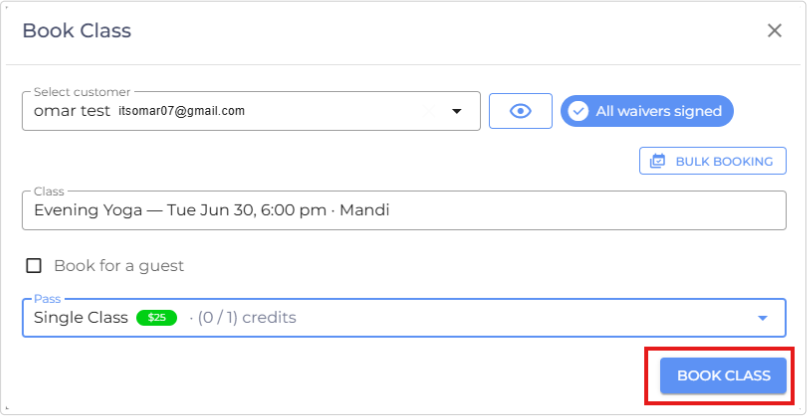
- Click the 'Add Booking' button to access the booking popup
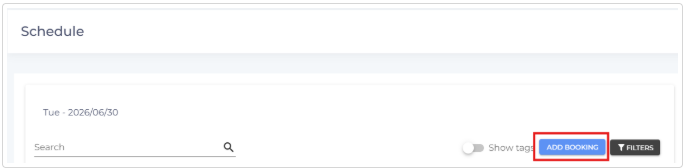
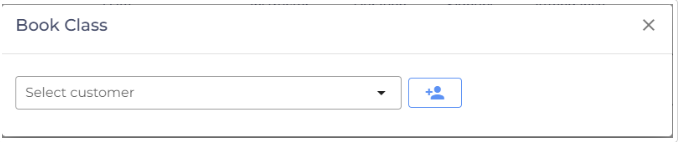
- Search for and 'Select' the required customer.
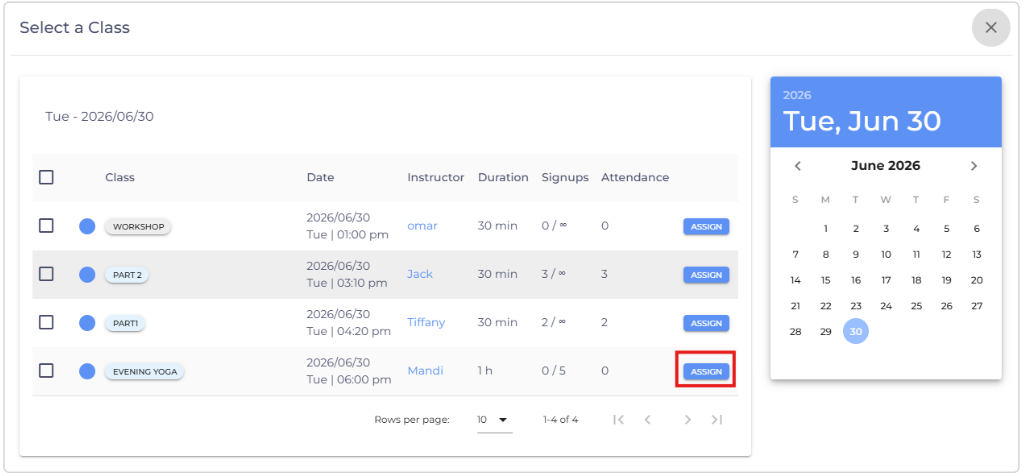
- 'Assign' the required class(es).
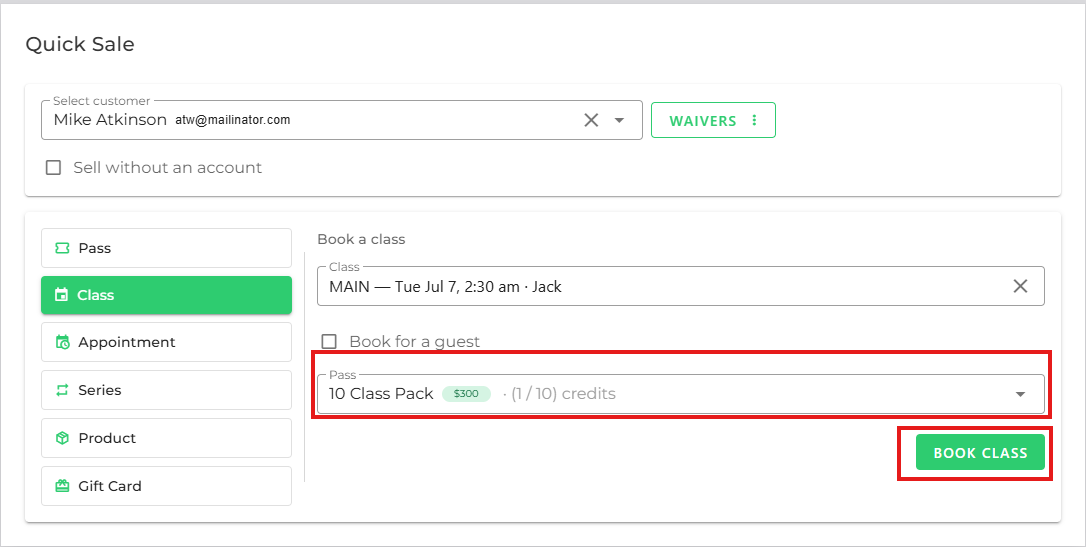
- Select the required pass and click the 'Book Class' button to finish assigning the class.
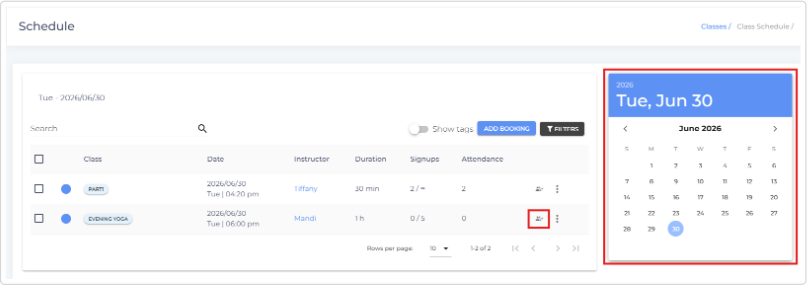
-Using the Roster:
- Select the required date(s) from the Calendar widget and click the 'Open Roster' button for the desired class.
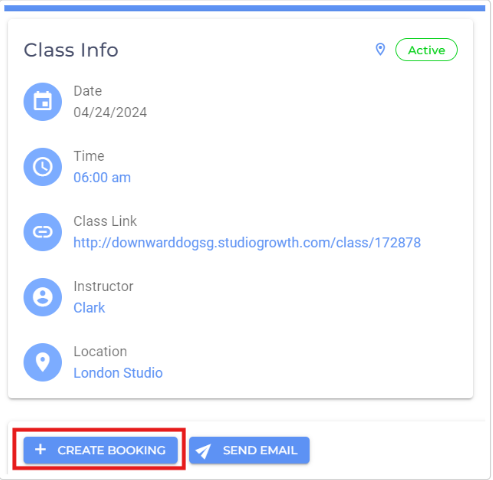
- Click the 'Create Booking' button.
- Search for and 'Select' the required customer.
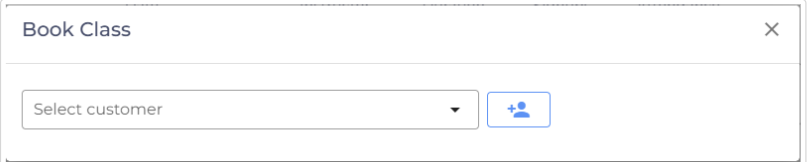
- Select the required pass and click the 'Book Class' button to finish assigning the class.
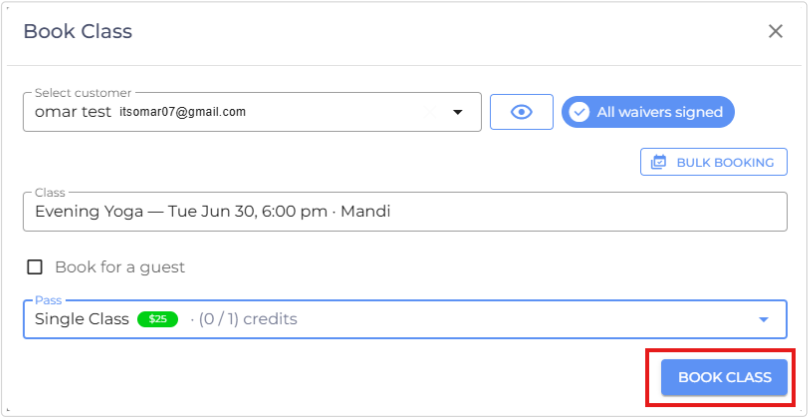
As an Instructor:
- Access the 'Sell' tab from the side menu, and click 'Select Customer'.
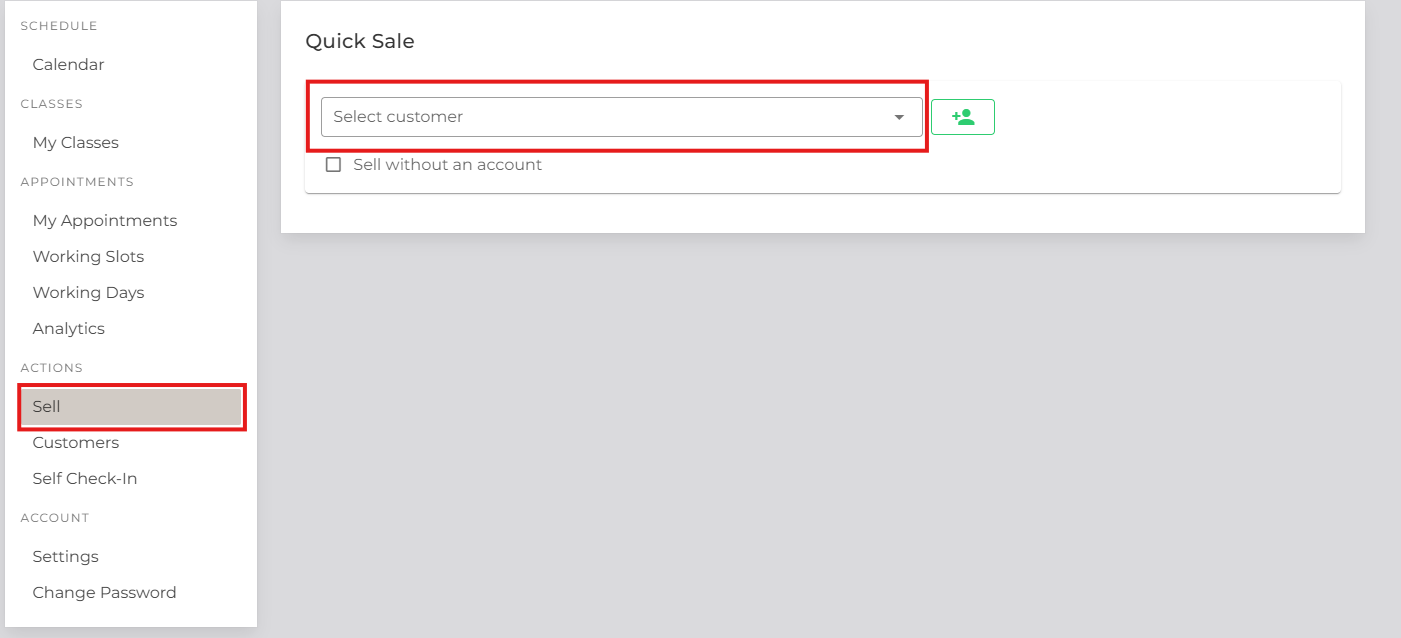
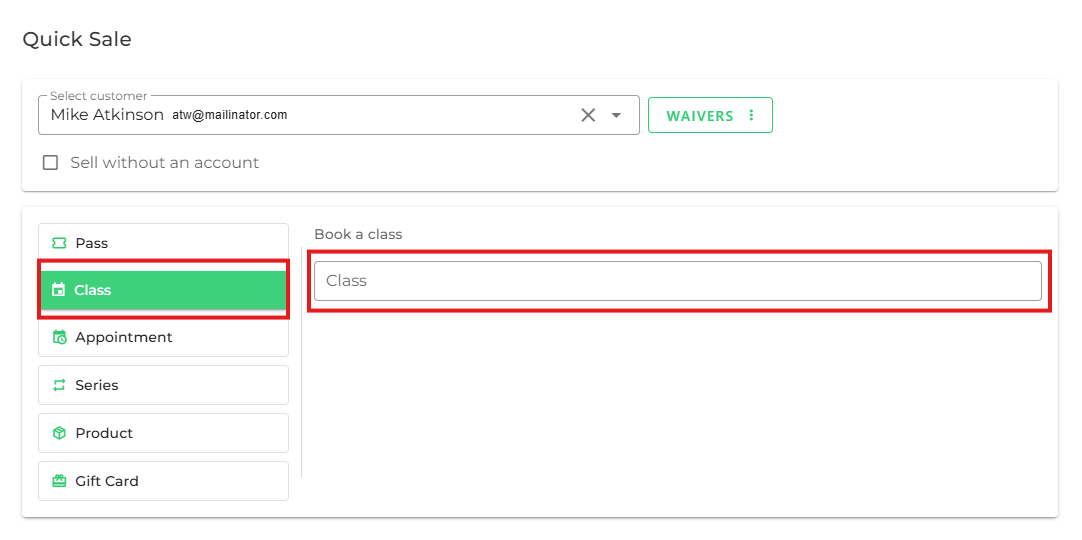
- Access Class and click 'Book Class'
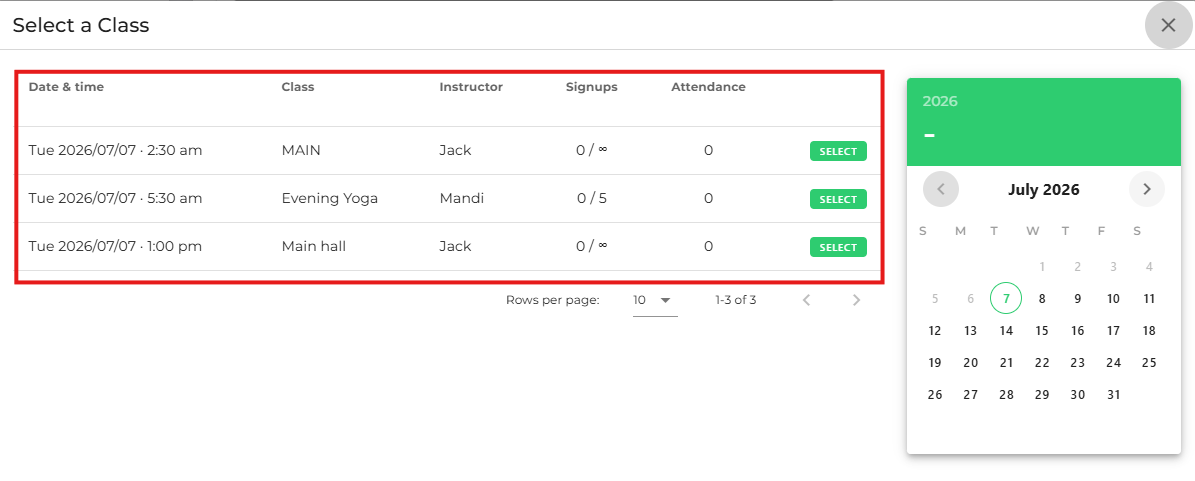
- Select the preferred class
- Select the eligible pass for the class and click 'Book Class'
- If you are facing any difficulties, get in touch with us via help.studiogrowth.com and we'll help you to get up and running in no time.