
Assigning Series to Customers
NOTE:
Once a series is assigned to a customer, they will be added into series classes upto 30 days in the future. This is refreshed everyday until customers have been been added to all series classes.
The way you assign classes to your customers depends on the role you play in the studio.
As an Admin:
Click 'Series' in the side menu tab.
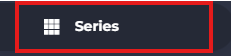
From here, there are 2 ways in which you can assign classes:
-Using the 'Add Booking' button:
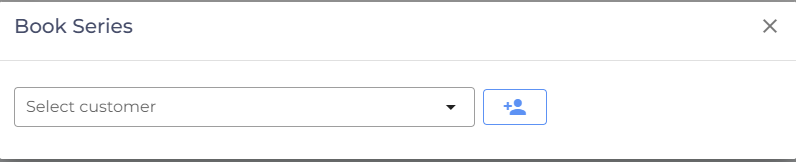
- Click the 3 dots and press 'Add Booking' button to access the booking popup.

- Search for and 'Select' the required customer.
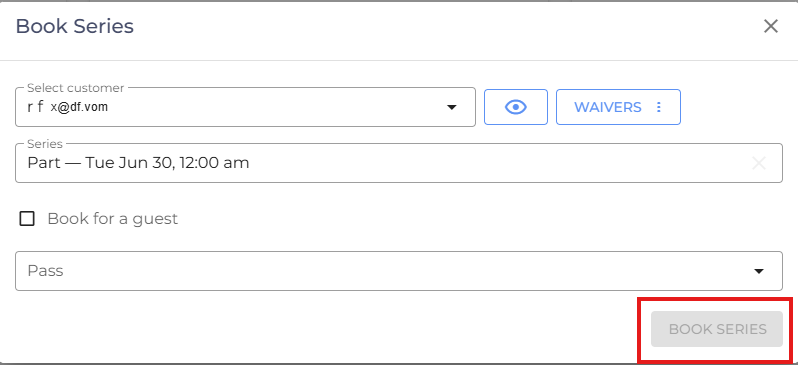
- Select the required pass and click the 'Book Series' button to finish assigning the series.
-Using the Roster:
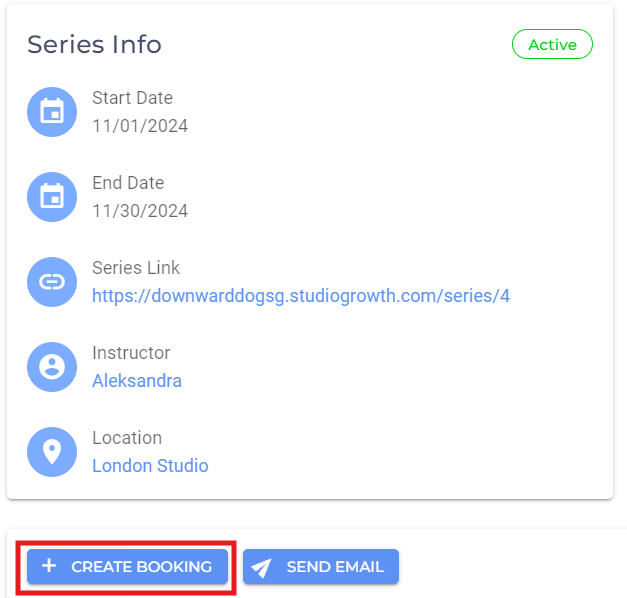
- Click the Series Name button for the desired series.

- Click the 'Create Booking' button.
- Search for and 'Select' the required customer.

- Select the required pass and click the 'Book Seires' button to finish assigning the series.
As an Instructor:
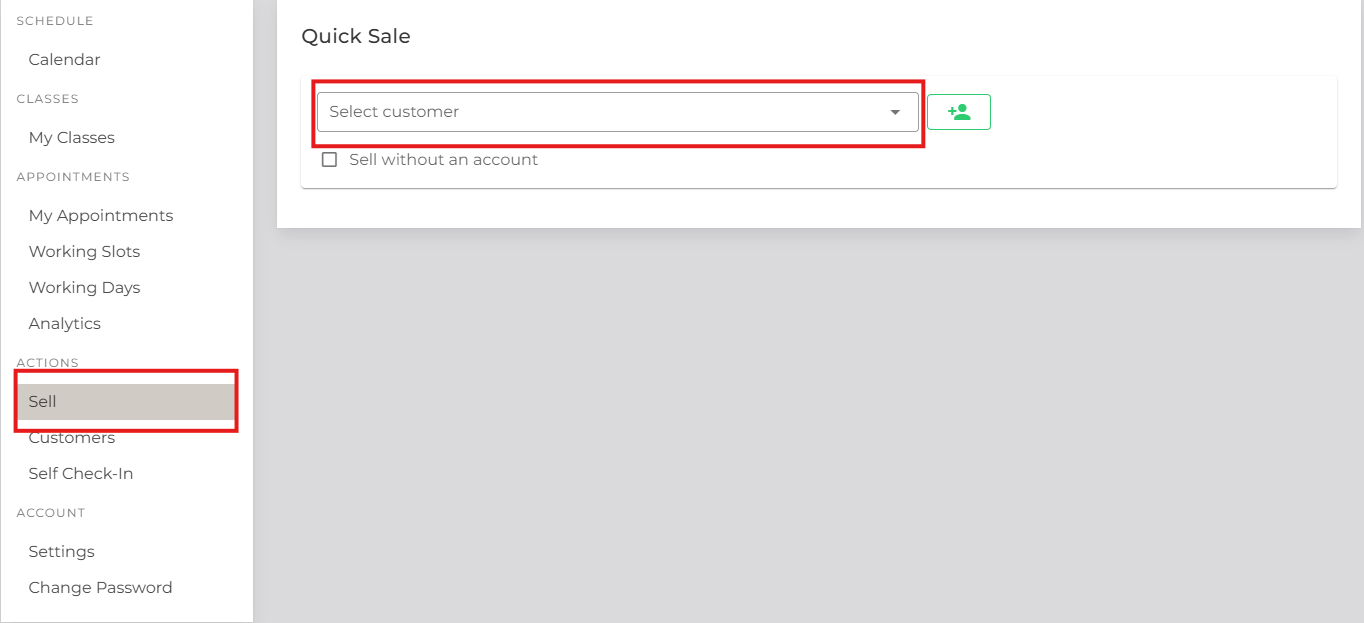
- Access the 'Sell' tab from the side menu and click 'Select Customer'.
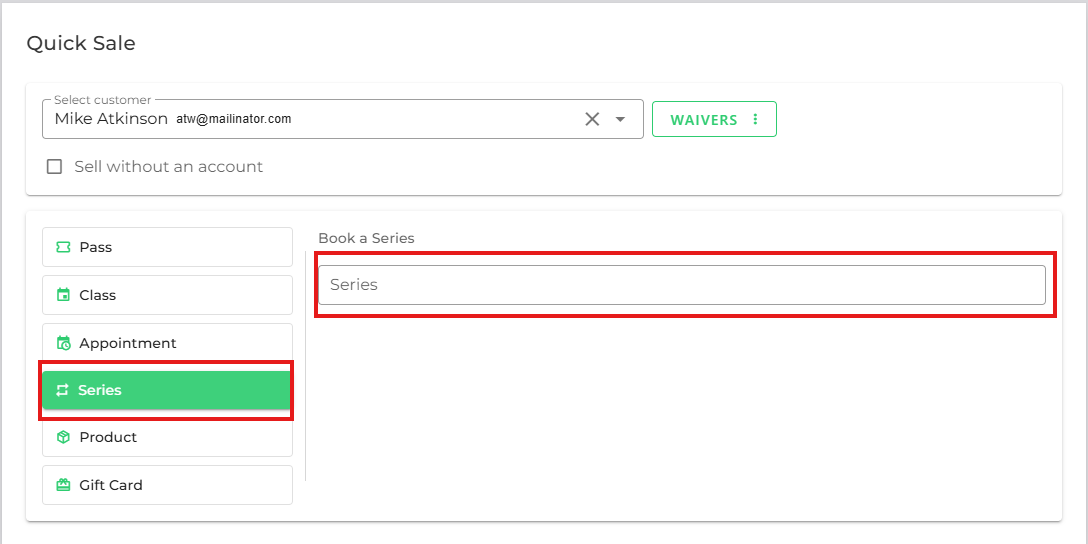
- Click on 'Series' and select your preferred Series.
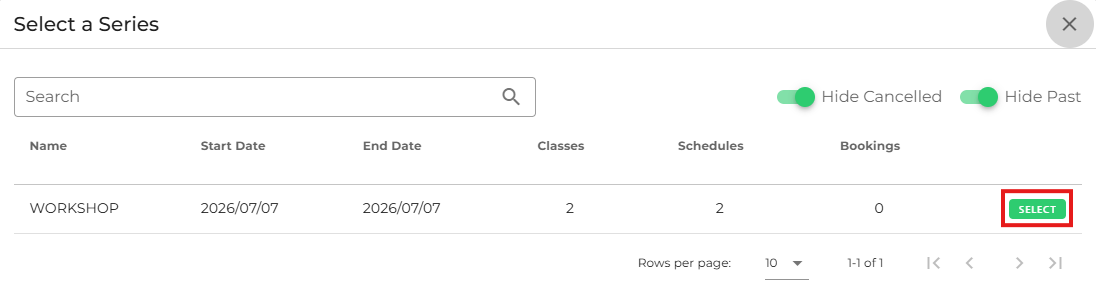
- Click the 'Select' button.
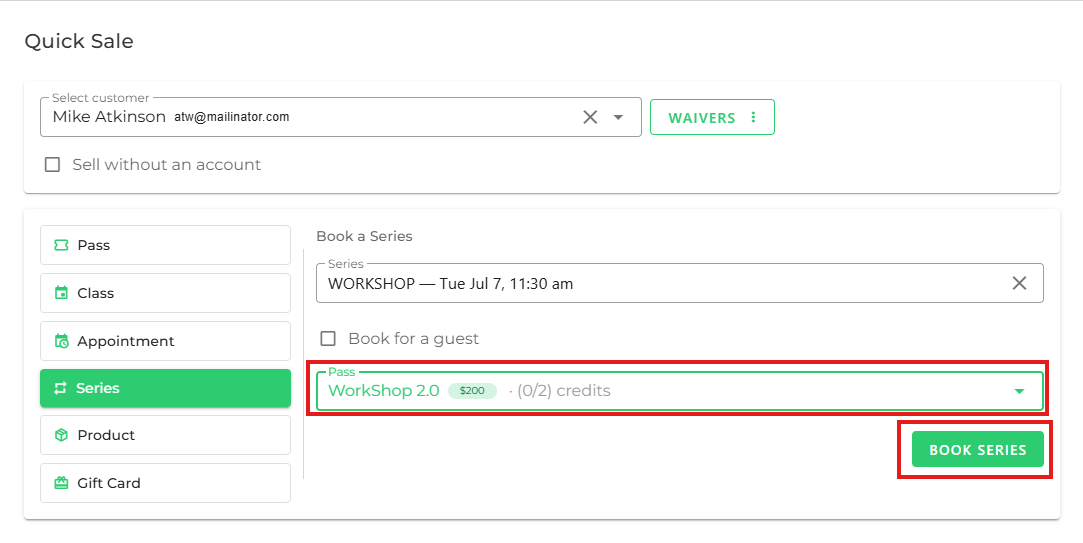
- Select the required pass and click 'Book Series' to finish.
- If you are facing any difficulties, get in touch with us via help.studiogrowth.com and we'll help you to get up and running in no time.