
Allow Guest Booking for a Pass
Note: Guest booking will only work if Allow a member to make reservations for the same class for friends or family is enabled in Settings > Business Settings > Customer Profile. If this setting is disabled, customers will not be able to book guests, even if Allow Guest Booking is enabled on the pass.
The Allow Guest Booking feature enables pass holders to reserve classes for friends or family members using their pass. To use guest booking, you must first enable guest reservations for your studio.
- From the side menu, navigate to Settings.
- Select Business Settings.
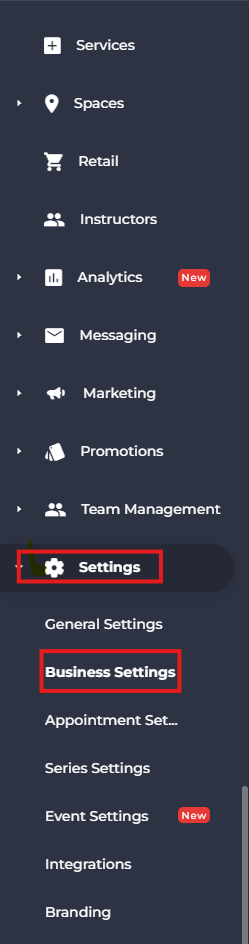
- Scroll down to the Customer Profile section and Enable Allow a member to make reservations for the same class for friends or family.

- Scroll Down and click Save.
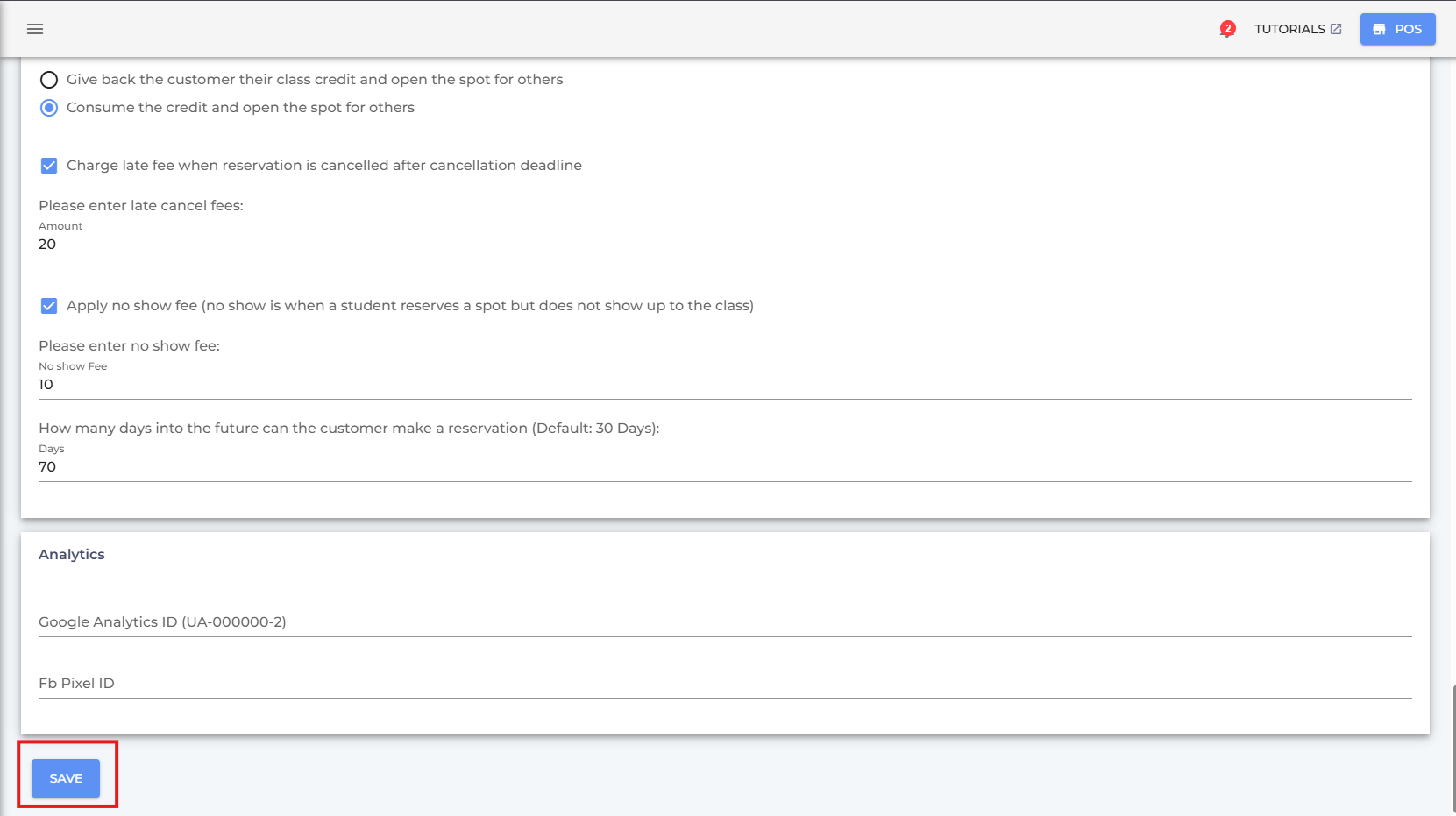
Once guest reservations are enabled for your studio:
- Navigate to Passes from the side menu.
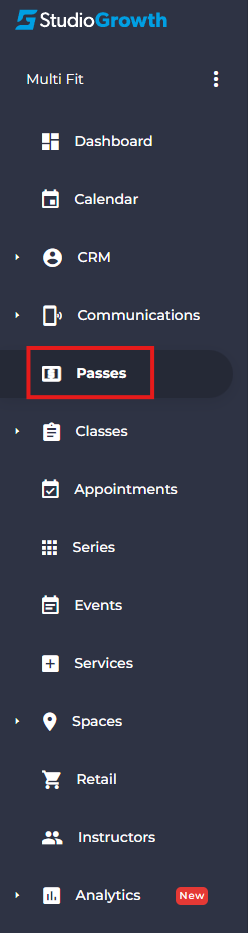
- Create a new pass or edit an existing one.
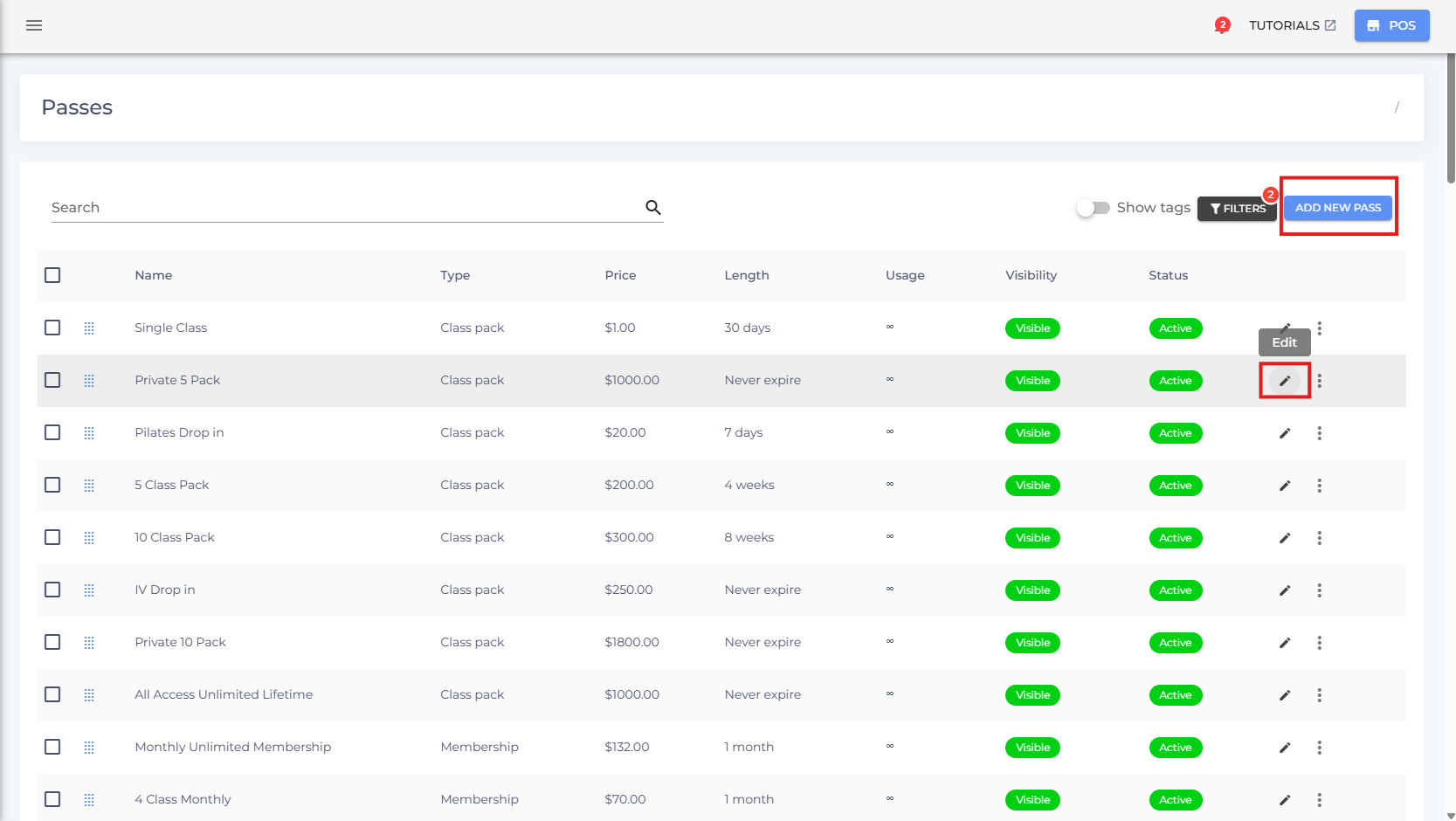
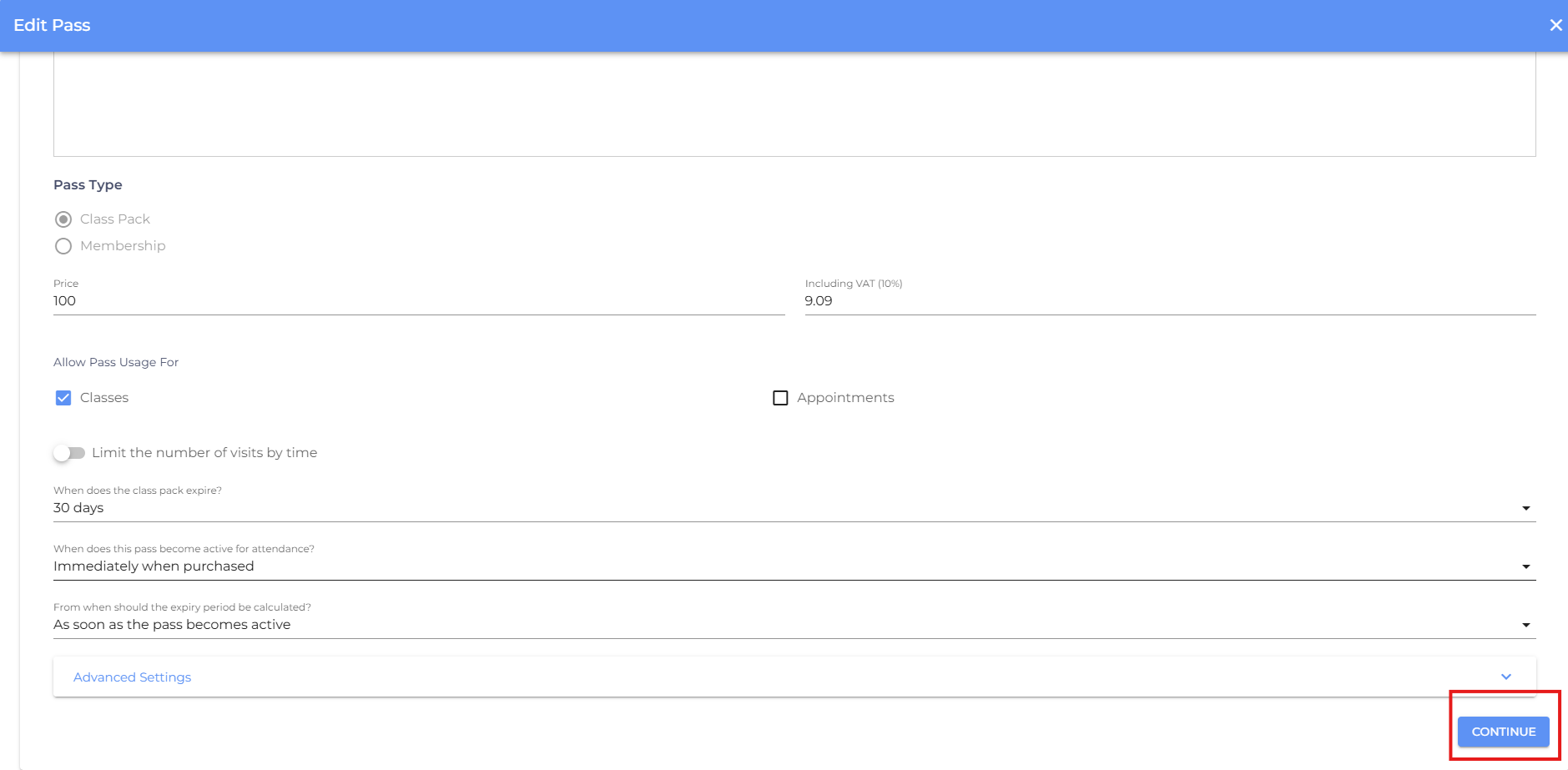
When creating a new pass, fill in the required pass details and click Continue. If you're editing an existing pass, scroll down and click Continue to access the additional pass settings.
- Enable Allow Guest Booking.
Note: If Separate Guest Credits is not enabled, any guest bookings will deduct credits from the pass holder's available pass credits. Enable Separate Guest Credits if you want to allocate a separate pool of credits specifically for guests.
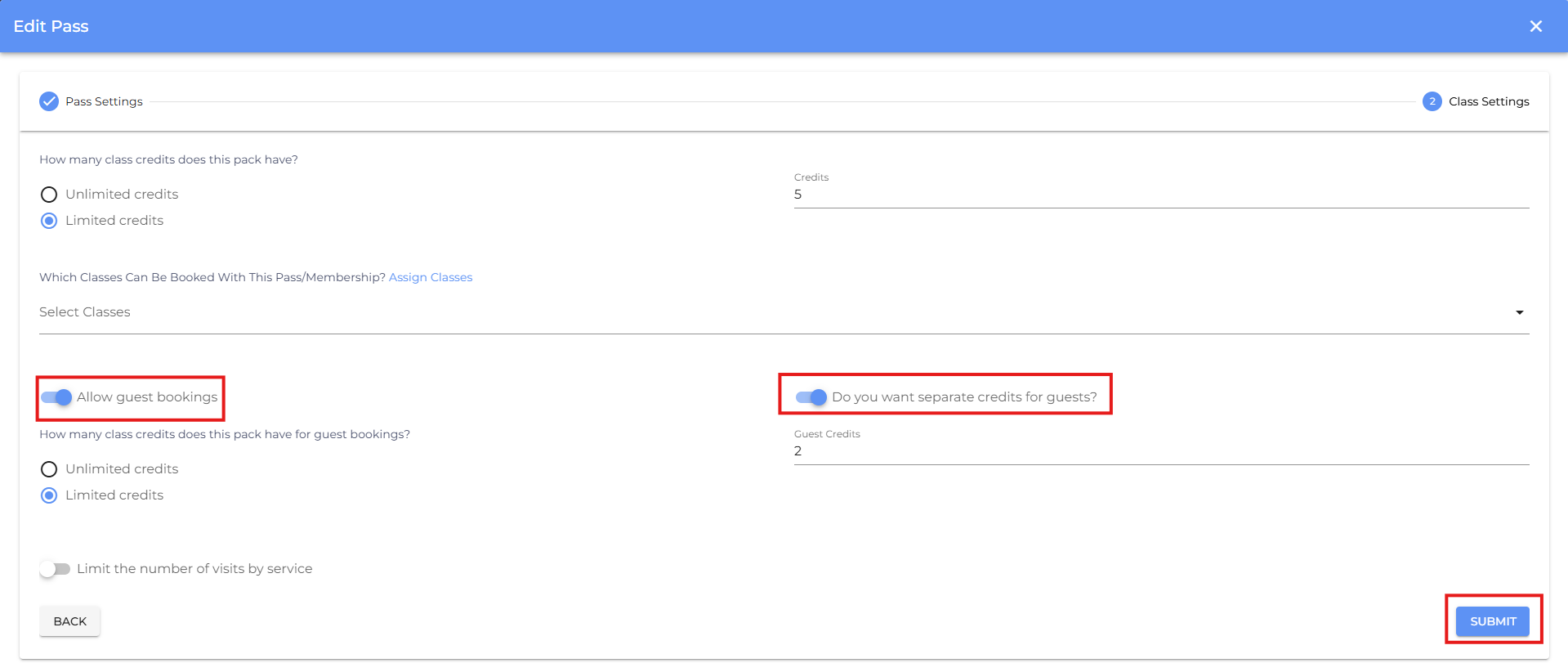
- Click Submit to apply your changes.
- If you are facing any difficulties, get in touch with us via help.studiogrowth.com and we'll help you to get up and running in no time.