
Create an Appointment Service
Appointment Services allow customers to book one-on-one sessions with your instructors or staff. When creating a new appointment service, you can configure booking options, cancellation policies, room requirements, and visibility settings.
- From the side menu, navigate to Services.
- Click Add New Service.
- Enter the required details, including:
Service Name
Description
- Disable Service for Group Classes and enable Service for Appointments.
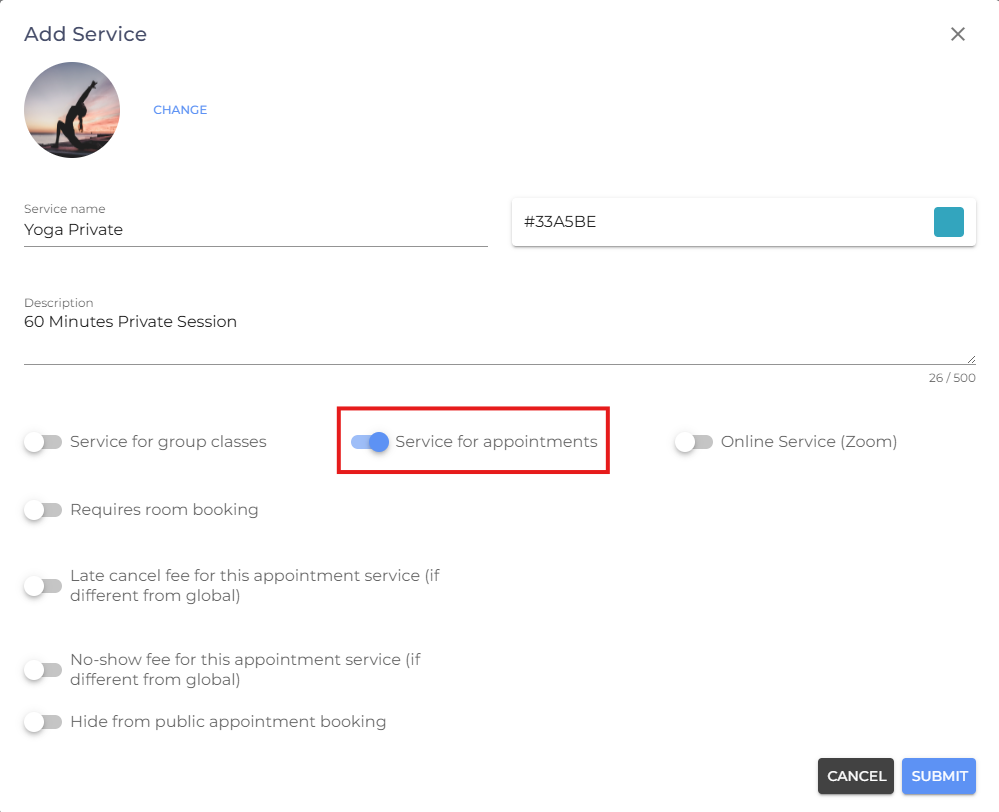
Once Appointments is enabled, you'll have access to additional appointment-specific settings:
- Requires Room Booking – Require a room to be assigned before the appointment can be scheduled.
- Late Cancel Fee for This Appointment Service – Configure a late cancellation fee specifically for this appointment service. This overrides the global late cancel fee.
- No-Show Fee for This Appointment Service – Configure a no-show fee specifically for this appointment service. This overrides the global no-show fee.
- Hide from Public Appointment Booking – Prevent the appointment service from appearing on your public booking page while keeping it available for internal use.
- Review your settings and click Submit to create the appointment service.
Note: If you'd like to apply the same Late Cancel Fee and No-Show Fee to all appointment services, configure the global settings instead. Navigate to Settings > Appointment Settings > Global Appointment Settings, then enable Charge Late Fee When Reservation Is Cancelled After Cancellation Deadline and Apply No-Show Fee. These settings will serve as the default fees for all appointment services unless a service-specific fee is configured.
- If you are facing any difficulties, get in touch with us via help.studiogrowth.com and we'll help you to get up and running in no time.