
Membership Suspension
Membership Suspension allows you to temporarily pause a customer's membership without cancelling it. This is useful when a member is unable to use their membership for a period of time due to travel, medical leave, or other personal reasons.
During the suspension period, the membership remains inactive and resumes according to the suspension settings you configure.
- From the side menu, navigate to CRM.
- Select Customers.
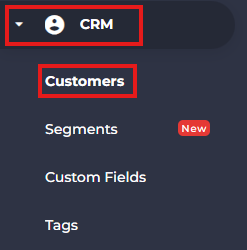
- Open the customer's profile by clicking on their name.

- Select the Passes tab.
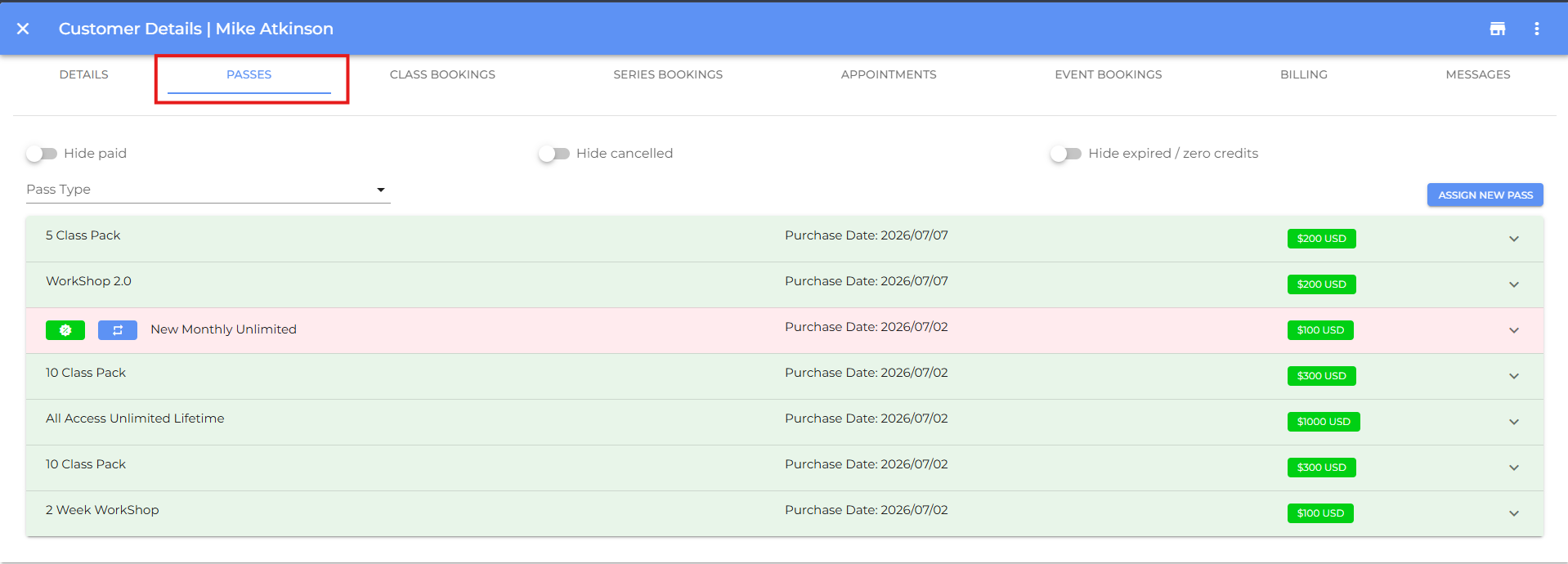
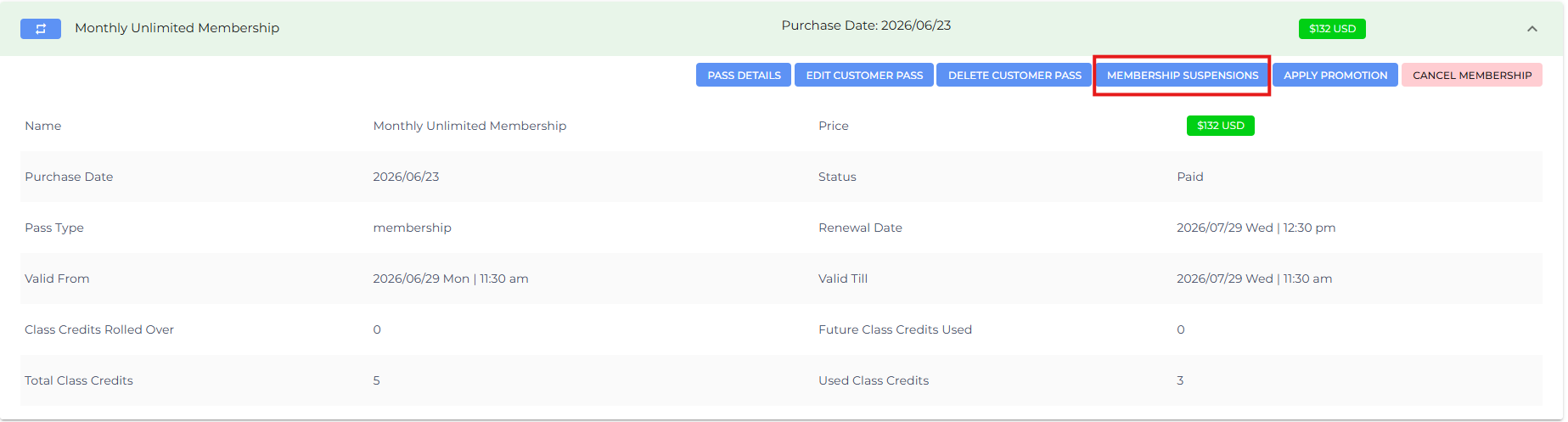
- Select the Membership you wish to suspend and click Membership Suspension.
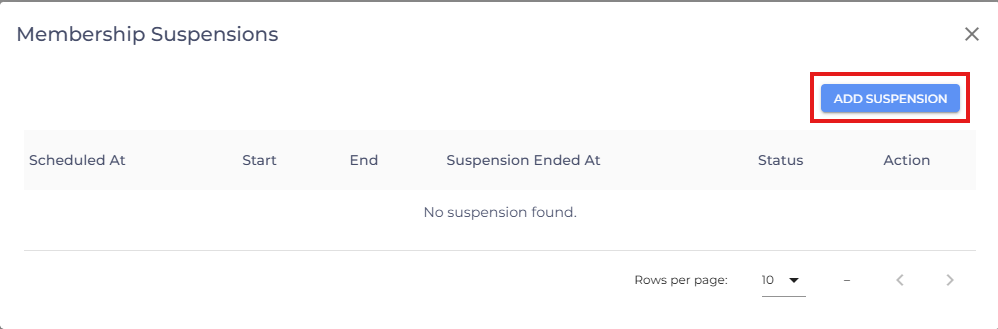
- Click on Add Suspension.
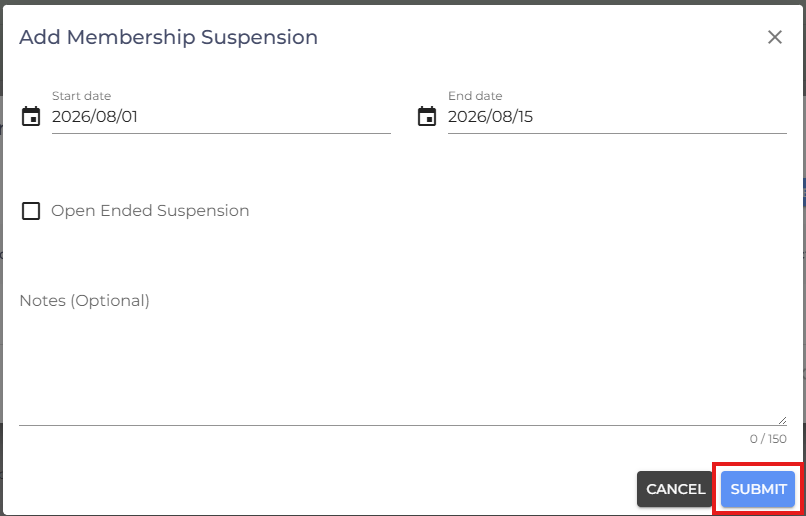
- Configure the suspension:
Start Date – Select the date on which the membership suspension should begin.
End Date – Select the date on which the membership should automatically resume.
Open-Ended Suspension – Enable this option if you want the membership to remain suspended until you manually reactivate it.
- Review the suspension details and click Submit.
Note: If you enable Open-Ended Suspension, the membership will remain suspended indefinitely and will not resume automatically. You'll need to manually end the suspension when the member is ready to reactivate their membership.
- If you have any questions or require additional clarifications, reach out to us at team@studiogrowth.com and we'll get you up and running in no time.