
Using Point of Sale (POS)
The Point of Sale (POS) allows you to quickly sell passes, memberships, appointments, series, products and gift cards to your customers from a single location.
As an Admin
- Click the POS icon in the top-right corner of Studio Growth.

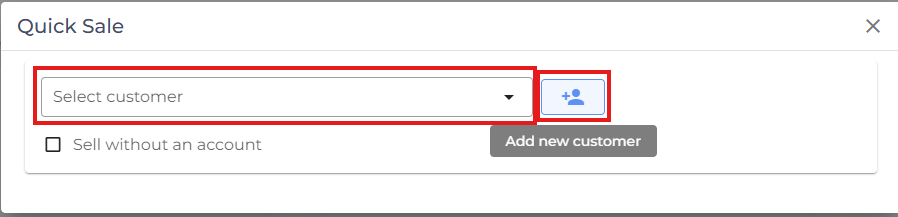
- Search for and select the customer you want to complete a purchase for.
- If the customer doesn't already exist, click Add Customer and enter the required details to create a new customer profile.
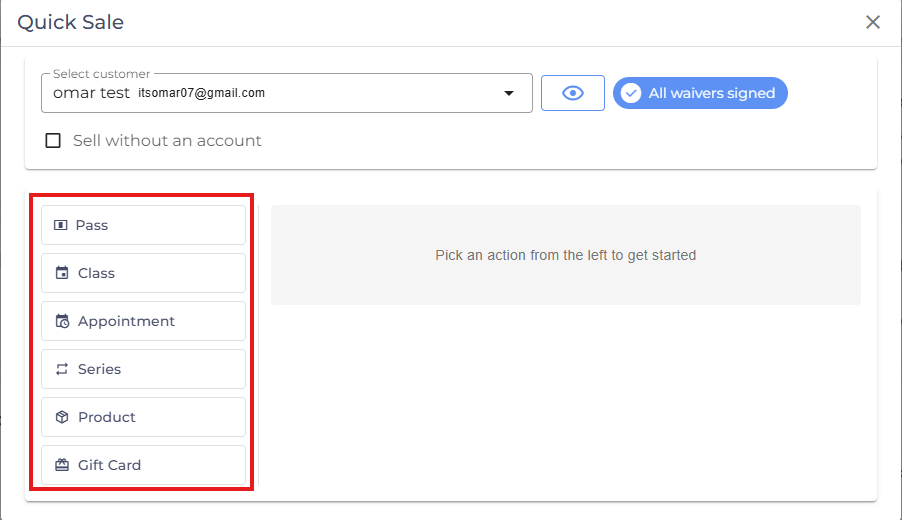
- Choose the item you want to sell:
- Pass
- Class
- Appointment
- Series
- Product
- Gift Card
- Passes – You can sell multiple passes to the same customer in a single transaction by clicking on Add another Pass and click Process complete the transaction.
When selling a pass through the Point of Sale (POS), you can customize the purchase using the following options:
- Start Date – Set a custom start date for the selected customer's pass. If no start date is specified, the pass follows the activation settings configured when the pass was created.
- Discount – Apply a discount code by clicking Discount, entering a valid discount code, and applying it to the purchase.
- Note – Add internal notes related to the purchase or customer. For example, you can record important information such as health conditions, special requests, or other relevant details. These notes are for your staff's reference and help provide better customer service.

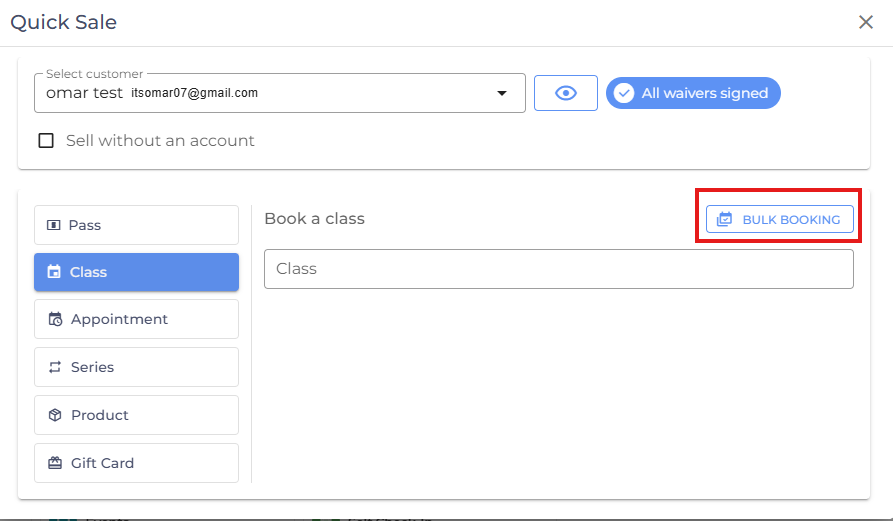
- Classes – You can perform bulk bookings, allowing you to book the customer into multiple classes at once and each class needs to assigned to a pass.
- Appointments
- Select preferred Service and Instructor.
- Select Duration.
- Select Date & Time.
- Select the required Pass.
- Click Book Appointment.

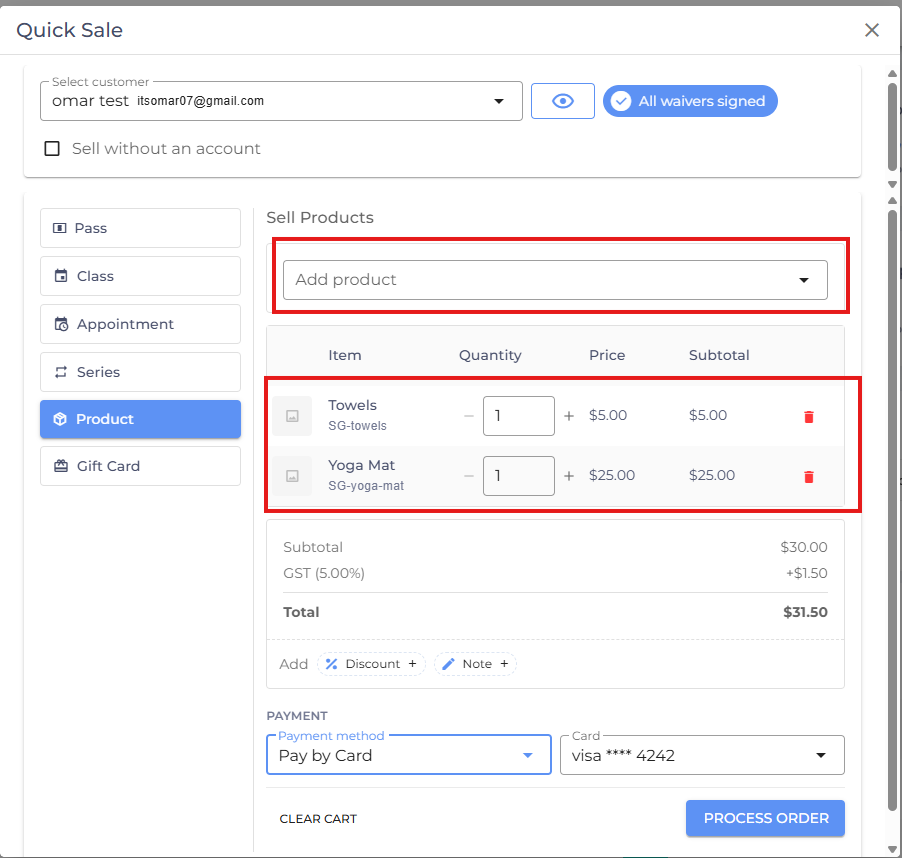
- Products – Add one or more retail products to the order by clicking on Add product.
As an Instructor
- Sign in to the instructor account.
- From the side menu, under Actions, click Sell.

- Use the Point of Sale (POS) to process customer purchases in the same way as an administrator.
Related Article: See Using POS as an Instructor to learn how to enable POS access for instructors.
- If you are facing any difficulties, get in touch with us via help.studiogrowth.com and we'll help you to get up and running in no time.