
Assigning Passes to Customers
How you assign passes to your customers depends on the role you play in the studio.
As an Admin:
There are mainly 2 ways to assign passes to customers:
- Using the 'POS' Button:
After logging in to the Admin portal, you will find an 'POS' button present on the top right at all times.

Clicking this will open a pop-up 'Quick Sale' tab, from where you can search for the customer you want to assign the pass to, and assign them the required pass.
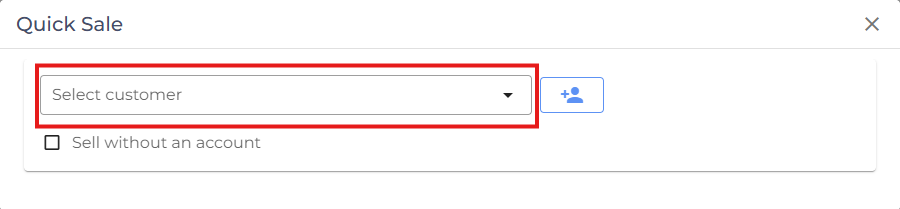
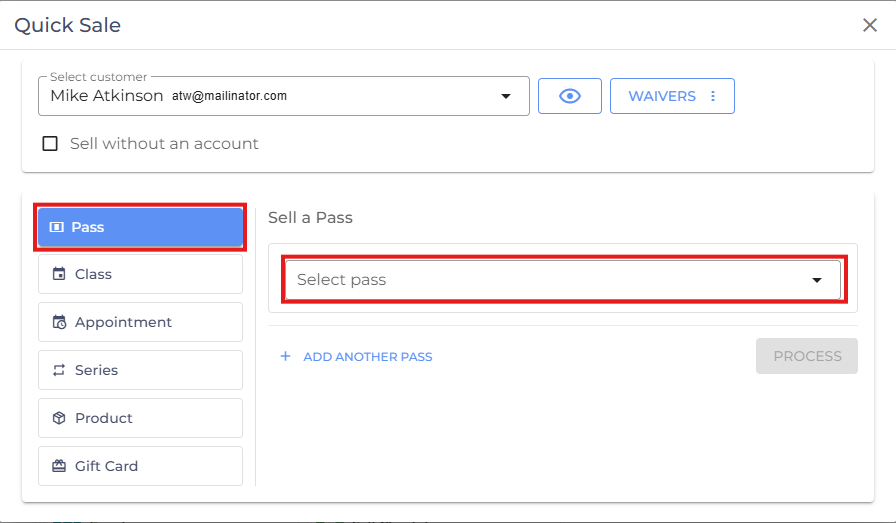
- Click on 'Pass' and click 'Select Pass'.
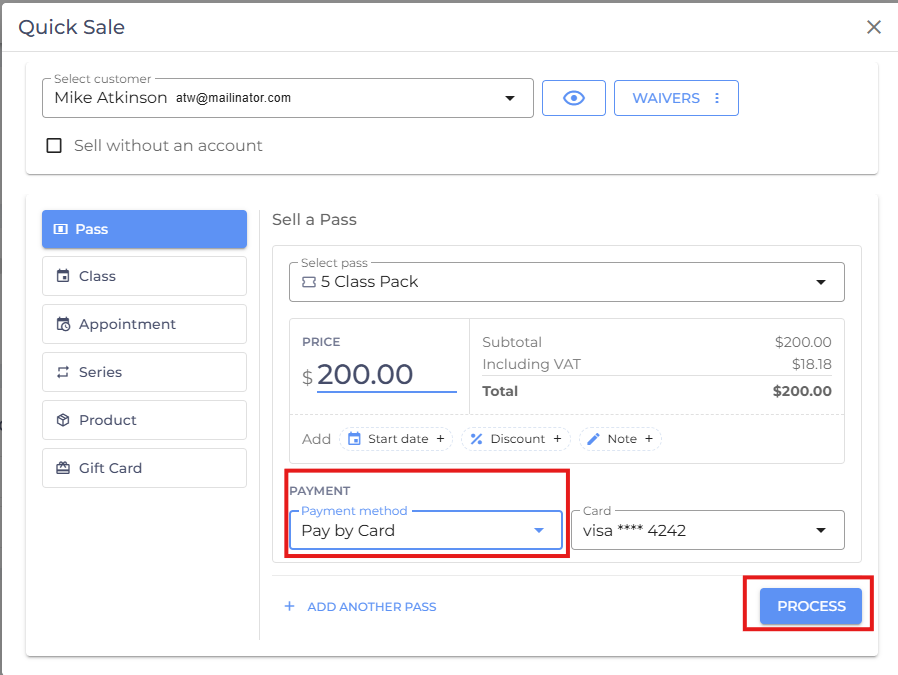
After selecting the required pass, you can process the payment by selecting a preferred Payment Method and click Process.
-
Using the 'CRM' Tab:
You can access the 'CRM' Tab from the side menu and go to 'Customer'.
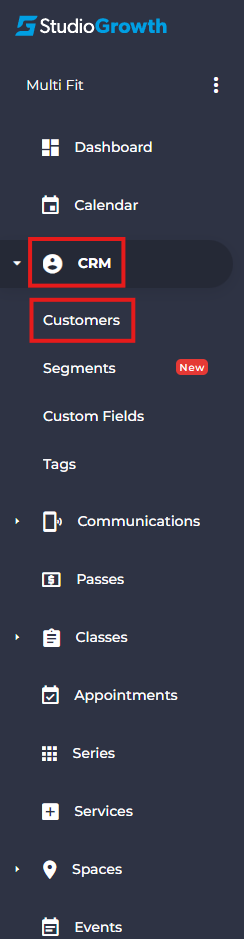
Here, you will find your customer database, from where you can search for the customer you want to assign the pass to, then Click on the Customer's Name.

- Access the Passes section and Click 'Assign New Pass'

- Click on 'Select Pass' and select your preferred pass.

- After selecting the required pass, you can process the payment.
As an Instructor:
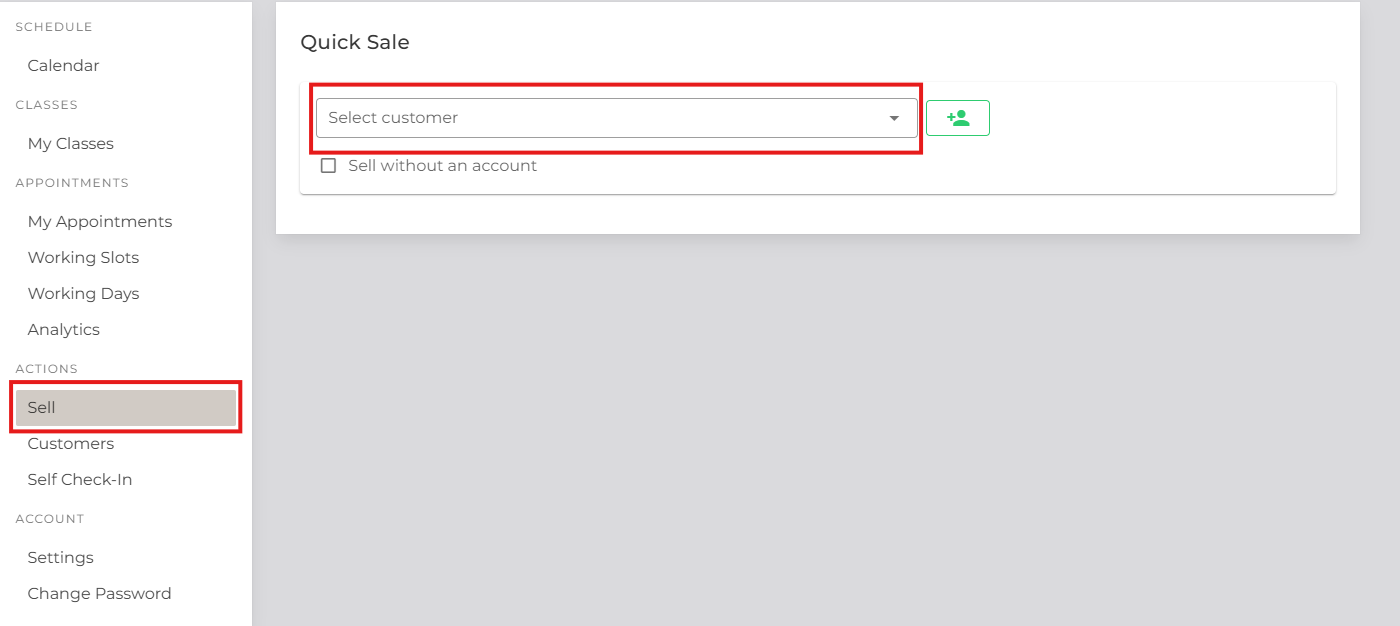
After logging into the Staff portal, you must access the 'Sell' tab from the side menu and Select the customer to whom you want to assign the pass.
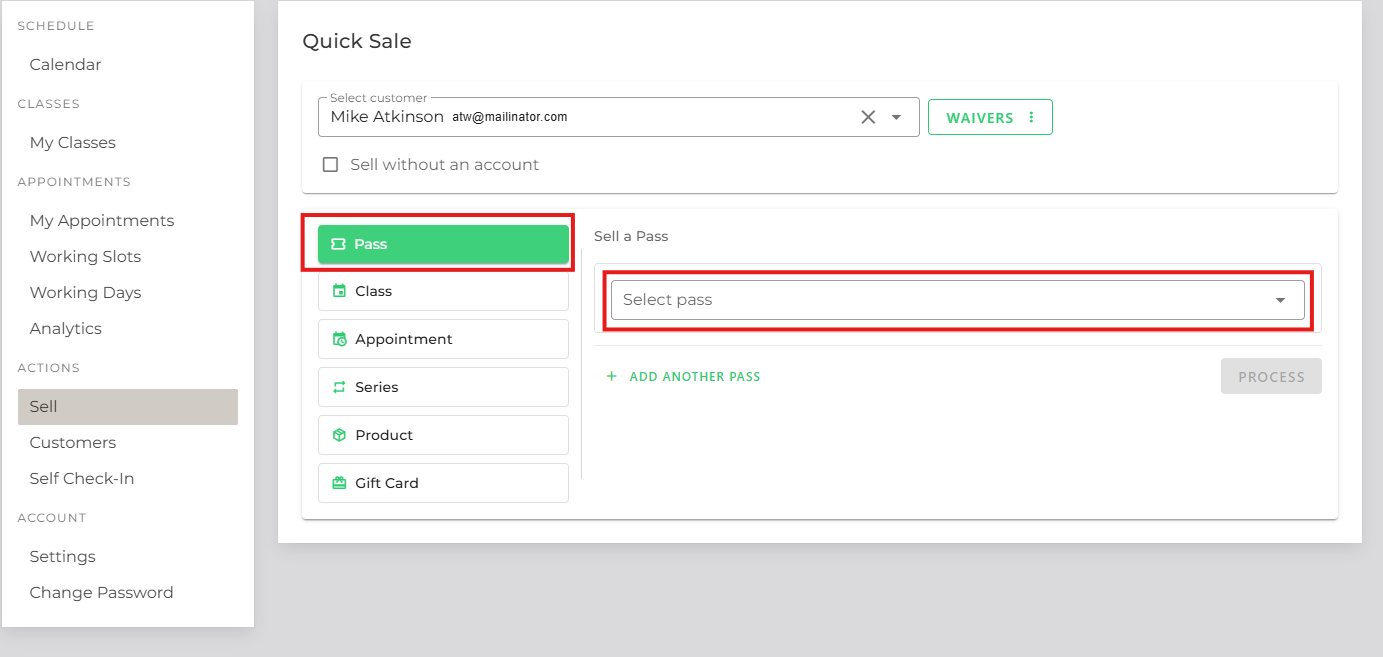
Click the Pass tab .Then, open the Select Pass drop-down menu, choose the pass you want to assign.
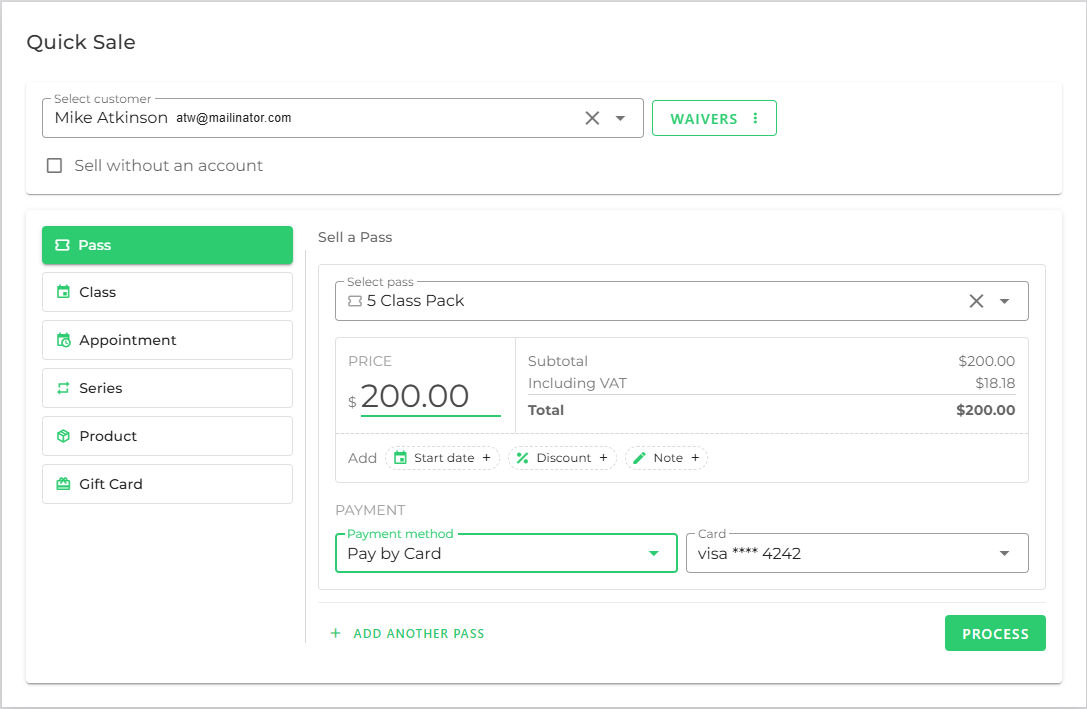
After selecting the required pass, you can process the payment.
If you are facing any difficulties, get in touch with us via help.studiogrowth.com and we'll help you to get up and running in no time.