
Managing Booking Window
A booking window controls how far in advance clients can schedule their classes. Depending on your studio's needs, you can set a uniform timeline for everyone or offer advanced booking privileges to your members.
Set Your Global Booking Window
If you want the exact same booking timeline to apply to every single client—including those on drop-in passes and class packs—you only need to configure your global settings.
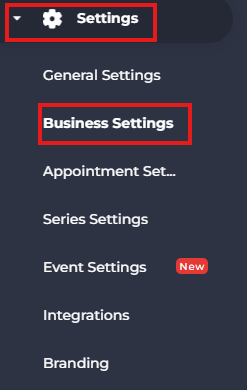
- Navigate to Settings > Business Settings.
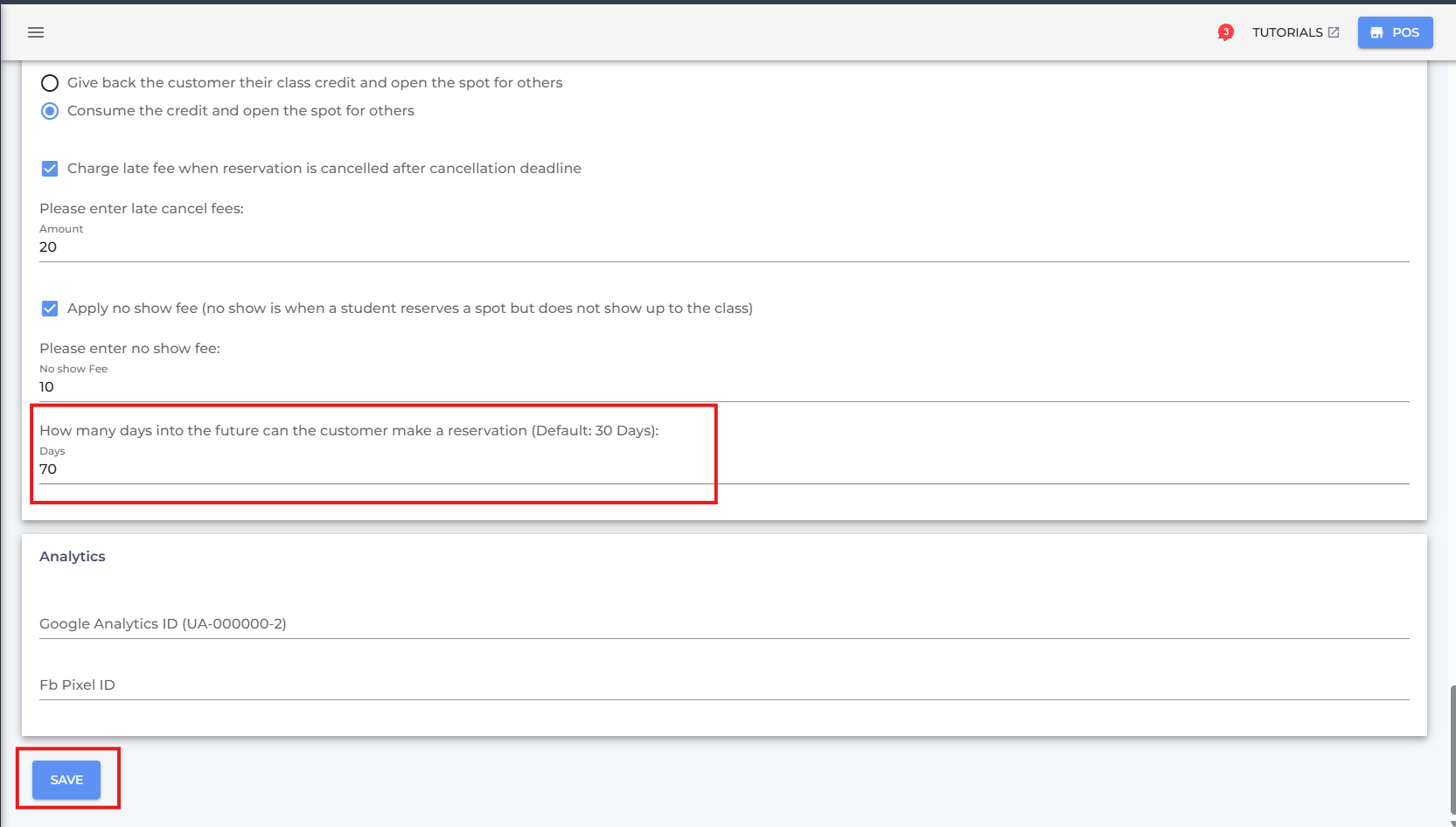
- Scroll all the way to the bottom of the page.
- Set your global booking window.
- Click Save.
Override Global Booking Window
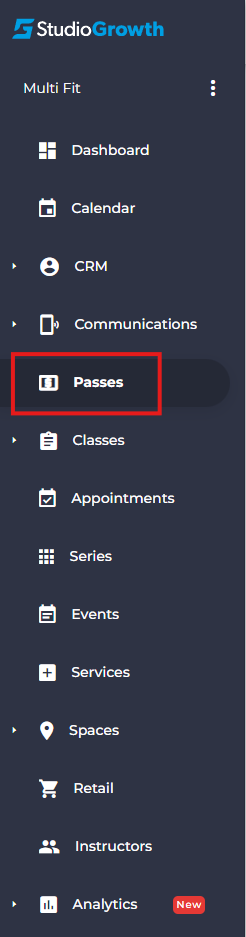
- Navigate to Passes from side menu.
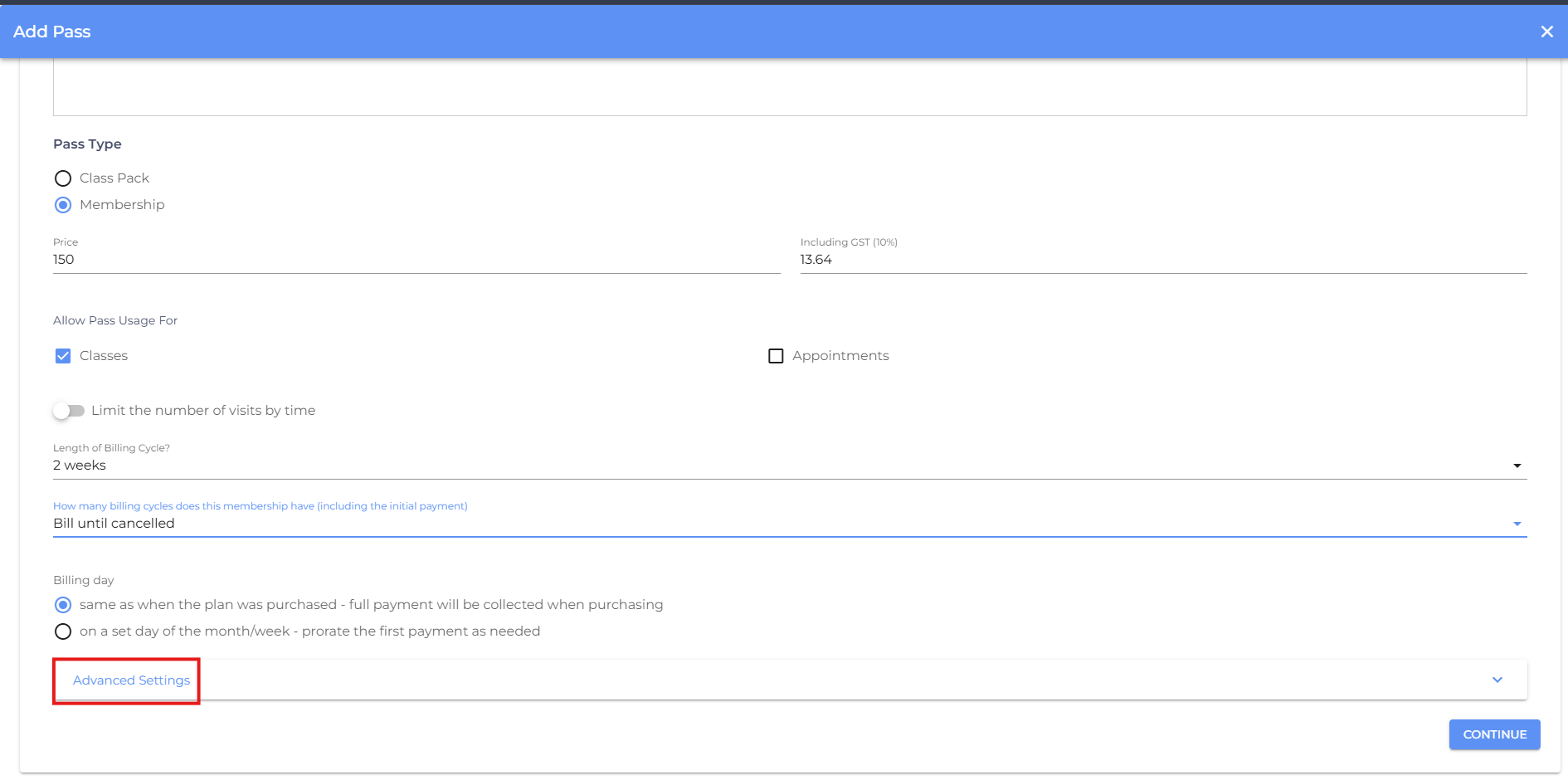
- Click Add New Pass or edit an existing one.

- Enter Required details for the pass.
- Scroll down and access Advanced Settings option.
- Enable the "longer booking window" feature.
- Set your extended booking window.
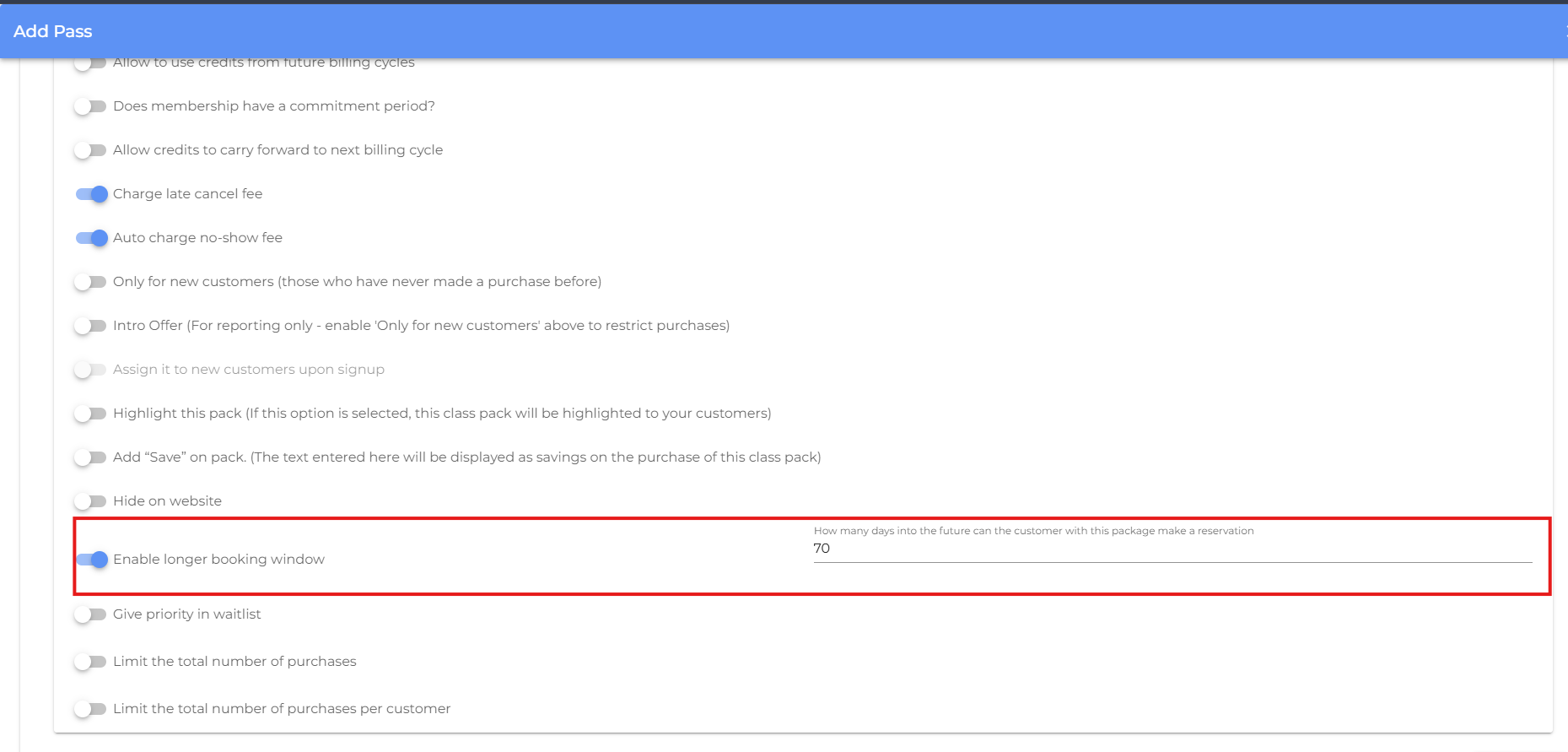
This overrides the global setting only for clients using that specific plan or package, while other clients remain restricted to the global window settings you set.
To explore other powerful customization options, dive into our detailed guides on
Advanced Settings for Membership Passes and Advanced Settings for Class Pack Passes.
- If you are facing any difficulties, get in touch with us via help.studiogrowth.com and we'll help you to get up and running in no time.